Google Analytics Connector
Use Google Analytics data in dashboards or AI pipelines. Sync acquisition, behaviour, and ads reports automatically.
Connect your Google Analytics 4 property to AI pipelines and sync acquisition, behaviour, daily totals, and Google Ads reports automatically.
Setup Instructions
1. Navigate to Data Integrations
Go to one of your flows, then click on the Data Integrations tab and select Select an Integration.
2. Select Google Analytics Integration
Search for Google Analytics in the list and click Connect.
3. Find Your GA4 Property ID
To connect Google Analytics, you need your Property ID:
- Go to https://analytics.google.com
- Click the Settings icon (gear icon) in the bottom-left corner
- Under the Property column, click Property Details
- Your Property ID is the numeric ID displayed at the top right of the page — copy it
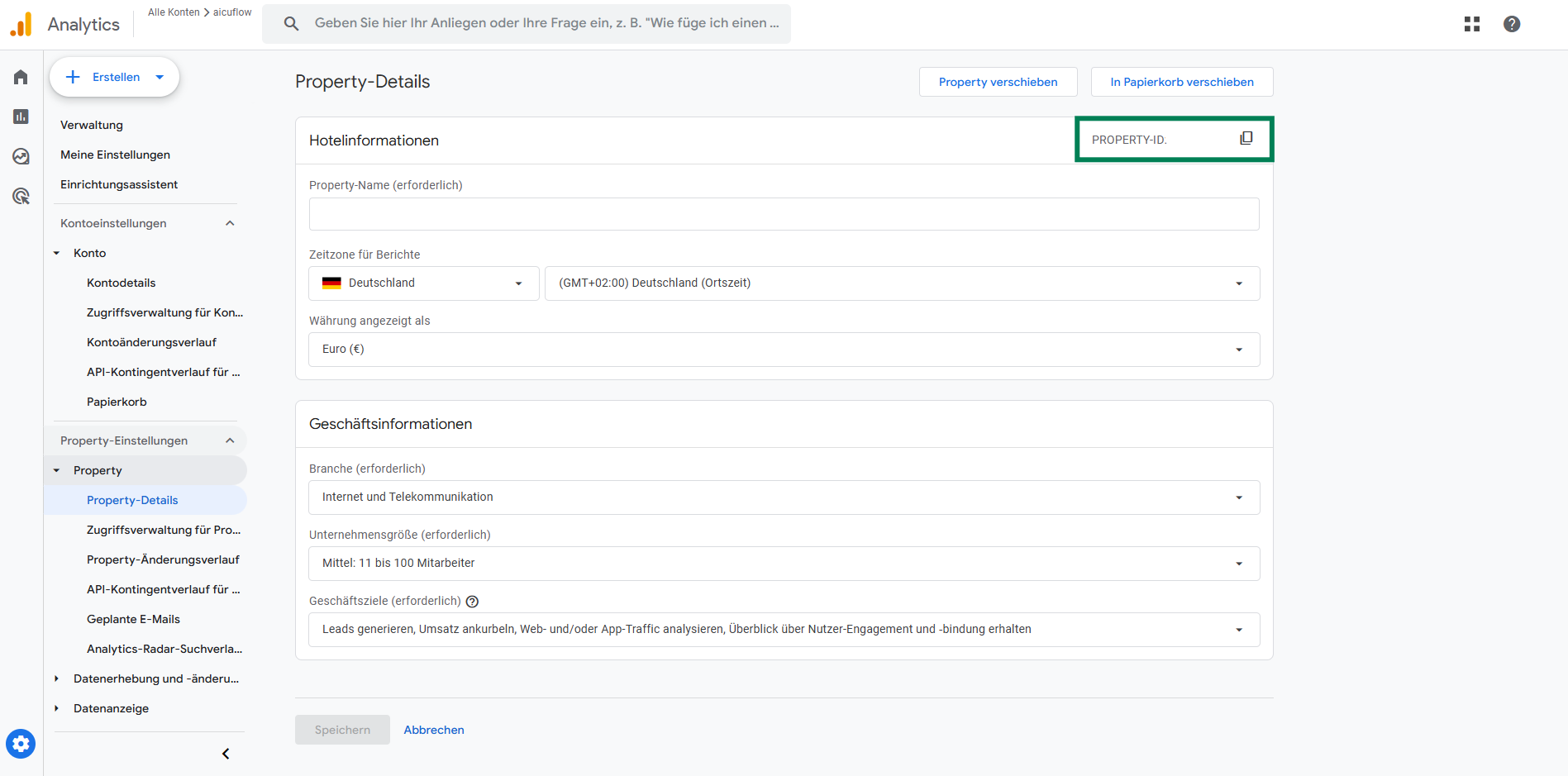
Note: Do not use the Measurement ID (starts with G-). Use the numeric Property ID only.
4. Configure the Connector
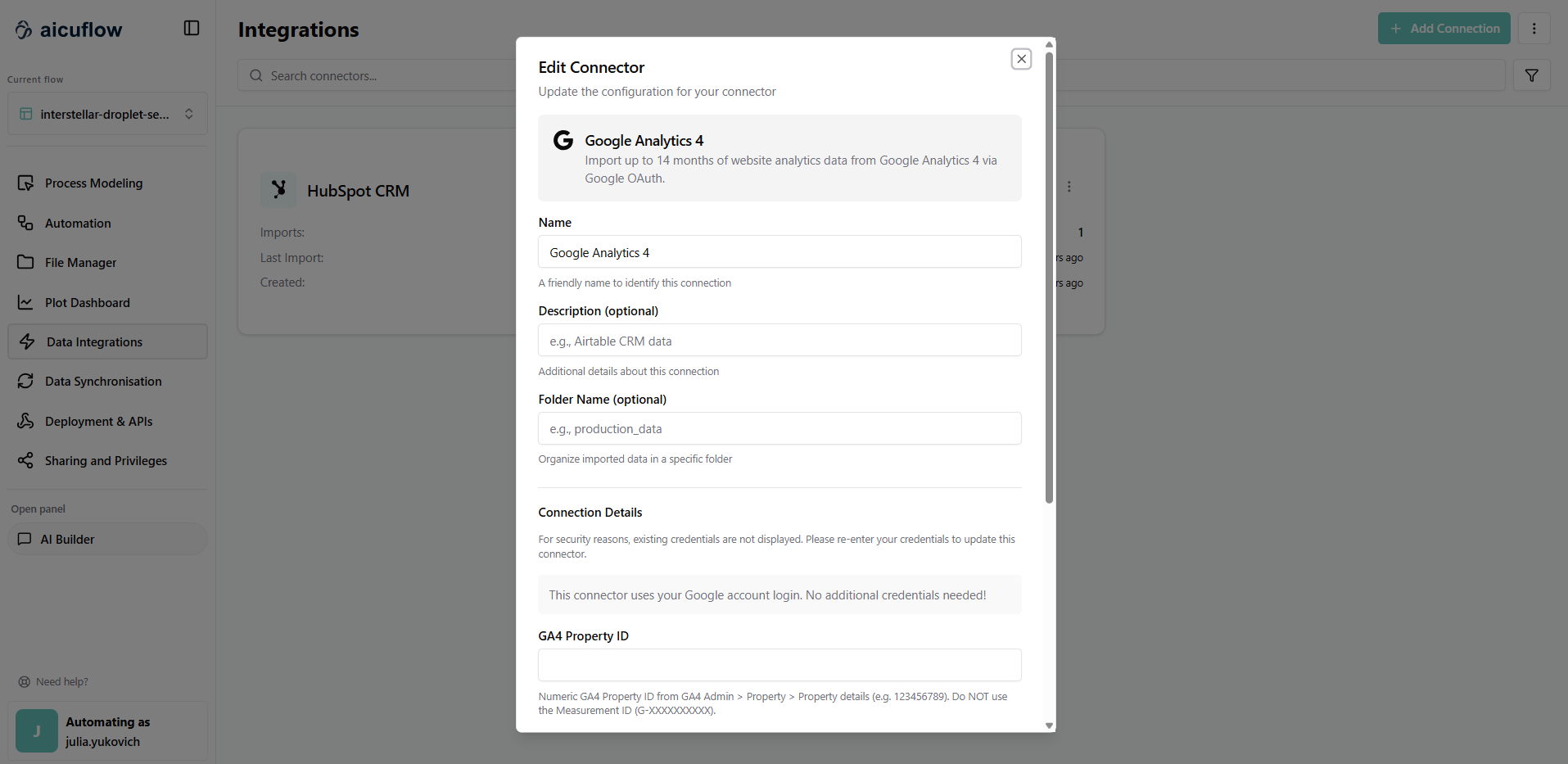
Back in the connector setup, fill in the following fields:
- Name: Give your connector a descriptive name (e.g., "Google Analytics Production")
- Description (optional): Add a short description of the connector
- Folder Name (optional): Specify a destination folder for the imported data
- GA4 Property ID: Paste the numeric Property ID you copied from Google Analytics
- Report Types: Select which reports to import:
- Acquisition — traffic sources and user acquisition data
- Behaviour — page views, sessions, and engagement metrics
- Daily Totals — aggregated daily summary metrics
- Google Ads — ad campaign performance data
Depending on the report types selected, relevant KPIs will be calculated and a dashboard will be set up for you automatically.
5. Authenticate with Google
This connector uses your Google account — no API key is needed. Click Authenticate and sign in with the Google account that has access to your Google Analytics property.
6. Create a Sync Job (Optional)
To automatically keep your Analytics data up to date, set up a sync job:
- Navigate to Data Synchronization and click the calendar icon
- Click Create Sync Job
- Select the Google Analytics connector you just created from the dropdown
- Give the sync job a descriptive name
- Choose a Sync Interval:
- Every 3 hours — suitable for most analytics use cases
- Daily — for daily report snapshots
- Custom — set your own schedule
- Click Save to activate the sync job
7. Monitor and Access Your Data
Check Import Status:
Navigate to Data Synchronization to monitor your import. You'll see whether the import succeeded or failed.
View Your Imported Data:
- Once the sync completes, go to File Manager (Data Management)
- Navigate to the folder where your data was stored
- Click any file to preview the analytics data
- All records from your selected report types will be available for use in your AI pipelines and dashboards
Important Notes:
- On every sync, a new version of your data is created
- Make sure the Google account you authenticate with has Viewer access (or higher) to the GA4 property
- If you lose access to the Google account, re-authenticate the connector from the settings