Talk to Your Data (RAG)
Ask questions in plain English and get answers grounded in your own documents, databases, and files.
What is RAG?
Retrieval-Augmented Generation (RAG) lets you ask questions in plain English and get answers that come directly from your own data - not from general AI knowledge.
Instead of an AI that guesses or hallucinates, RAG grounds every answer in your actual documents:
- Index - your files are split into chunks, embedded into vectors, and stored in a semantic search index
- Retrieve - when you ask a question, the most relevant chunks are pulled from that index
- Generate - a language model composes a precise answer using only what was retrieved
The result is an AI that knows your data as well as your best analyst - and can answer questions about it instantly.
Setting Up a RAG Index
1. Open a Flow
RAG is attached to a Flow. Each flow has exactly one RAG index that covers all the files in that flow.
Open an existing flow or create a new one, then navigate to the RAG tab.
2. Add Files to Your Flow
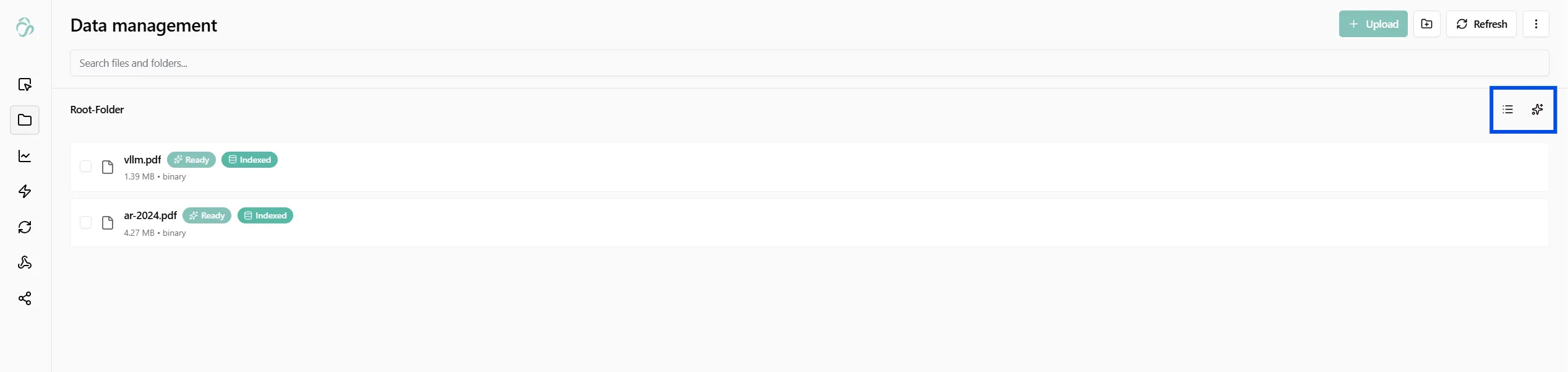
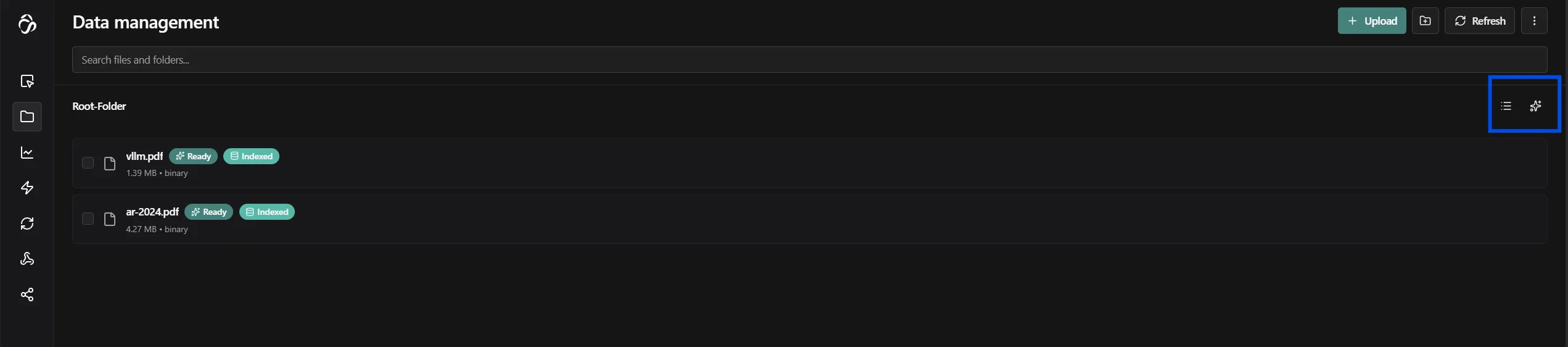
Before building an index, your files need to be in the flow's File Manager. Upload PDFs, Word documents, text files, spreadsheets, or any supported format. Files show a Ready badge once processed and an Indexed badge once included in the RAG index.
Tip: Use the Data Transformation node to preprocess files before indexing - remove noise, standardize formatting, or merge related documents.
3. Open the RAG Interface
Click the RAG icon (✦) in the top right of the File Manager to open the knowledge graph and chat interface.
4. Build the Index
Click Recalculate Index to process every file in your flow:
- Each document is split into overlapping text chunks (typically 500–1000 tokens each, with overlap to preserve context across boundaries)
- Each chunk is converted into a vector embedding - a numerical representation of its meaning
- All embeddings are stored in a vector database (Qdrant) alongside the original text, so retrieval is semantic rather than keyword-based
- Simultaneously, an AI model reads your documents and extracts entities (people, organizations, concepts, events) and relationships between them to build a Knowledge Graph
You can see the status of each file in real time. A file shows Indexed once its chunks are stored and its entities are extracted.
5. Ask Questions
Once the index is ready, type any question in the chat panel on the left and get an answer grounded in your documents.
How Answers Are Generated
Behind the chat interface, aicuflow supports four retrieval modes. You can select the mode manually, or leave it on Hybrid and let the system decide.
Naive - Chunk Search Only
The simplest and fastest mode. Your question is embedded and compared against all chunk vectors. The top matching chunks are returned to the language model as context.
Best for: Quick lookups, specific factual questions, finding exact passages.
Example: "What is the cancellation policy in the service agreement?"
Local - Chunks + Related Entities
Retrieves relevant chunks and then expands context by fetching entities and relationships that appear in those chunks from the knowledge graph.
Best for: Questions about specific people, organizations, or concepts where relationships matter.
Example: "What projects has Dr. Chen been involved in across these reports?"
Global - Graph-First
Starts from the knowledge graph rather than text chunks. Finds the most connected entities relevant to your question, then retrieves text that mentions them.
Best for: High-level synthesis questions that span many documents.
Example: "What are the main themes across all the research papers?"
Hybrid - Adaptive (Recommended)
Combines all modes dynamically. The system evaluates your question and picks the most effective retrieval strategy - or blends multiple strategies if the question is complex.
Best for: Most real-world use cases. Default setting.
Supported File Types
| Format | Notes |
|---|---|
| Text-based PDFs only. Image-only (scanned) PDFs are not currently supported. | |
| Word (.docx) | Full text extraction including tables |
| Plain text (.txt, .md) | Directly indexed |
| Excel / CSV | Rows are treated as structured text chunks |
| PowerPoint (.pptx) | Slide text extracted |
Query Tips
- Be specific. "What does the contract say about liability limits in clause 8?" works better than "Tell me about liability."
- Reference time ranges. "What changed between the Q1 and Q3 reports?"
- Ask comparative questions. "Which supplier had the lowest defect rate across all audit reports?"
- Use follow-ups. The chat keeps context across turns - ask a follow-up without repeating the full question.
- Try different modes if an answer feels incomplete - switch to Global for broad synthesis, Naive for pinpoint lookup.
Sharing a Chat
You can share your RAG chat with anyone - they don't need an aicuflow account to view and interact with it.
Click Share Chat in the top right. A dialog appears with a QR code and a shareable link.
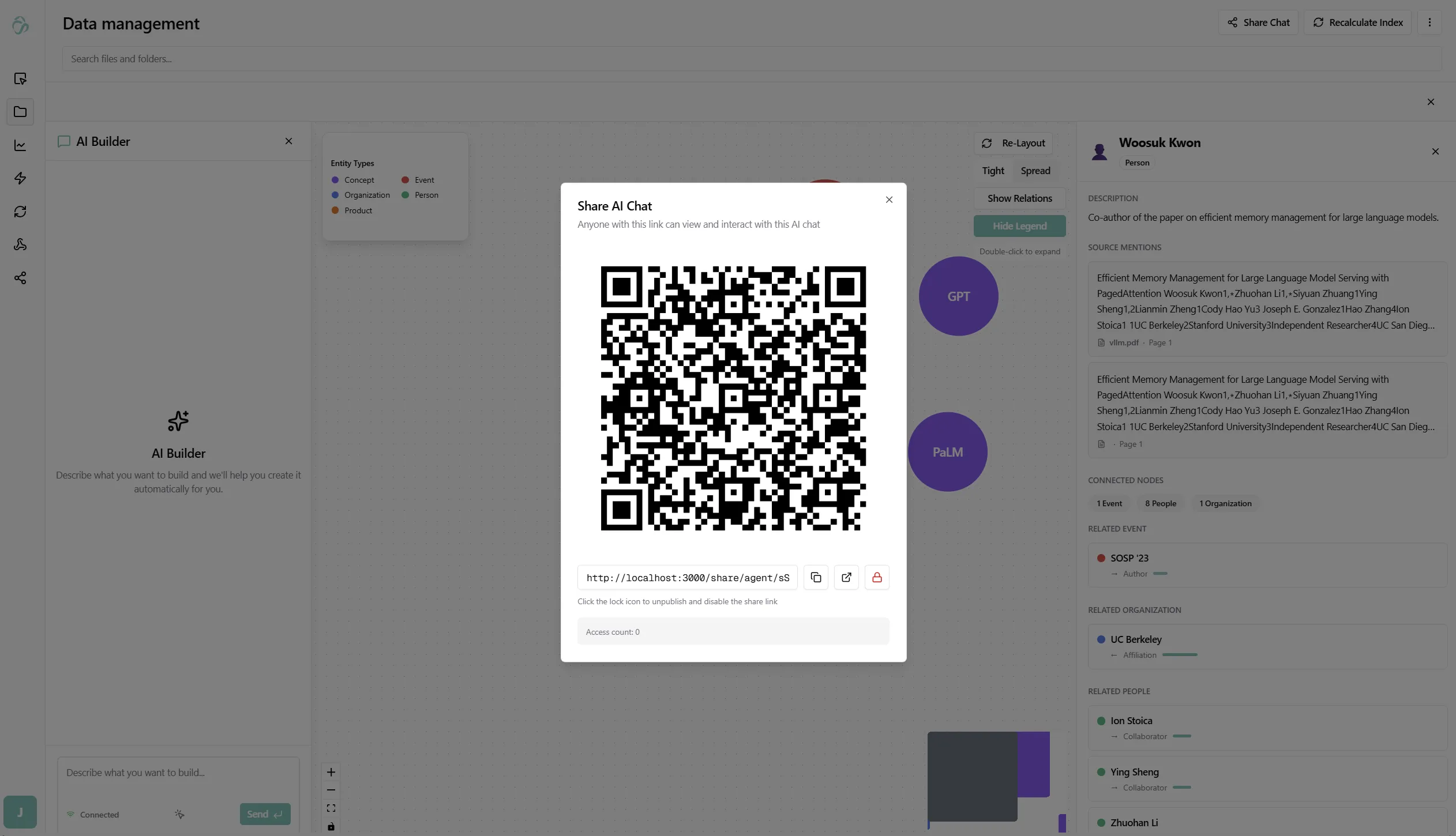
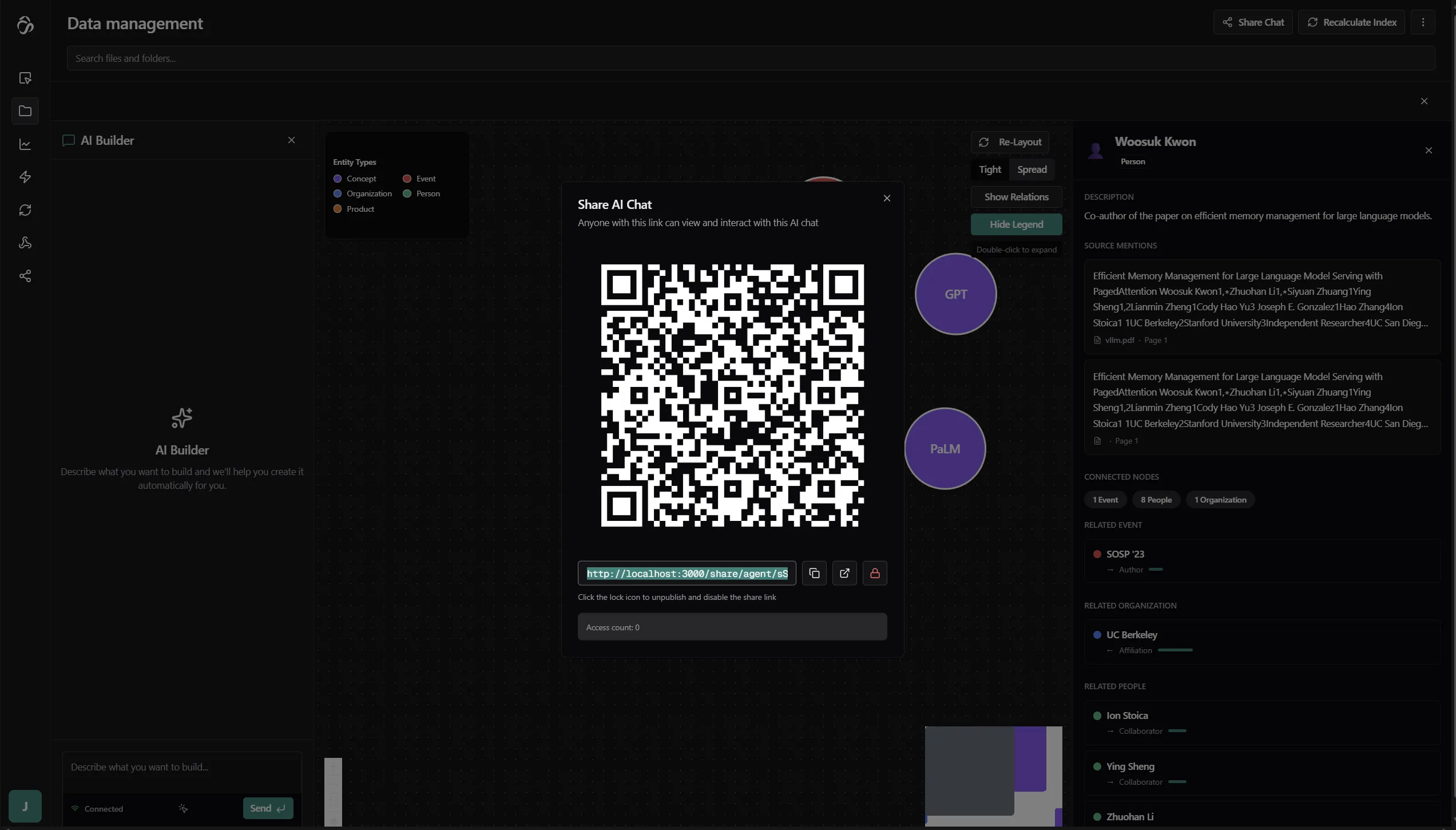
Anyone with the link can open the chat and ask questions - they interact with the same index, and answers are grounded in the same documents. You can disable the link at any time from the same dialog.
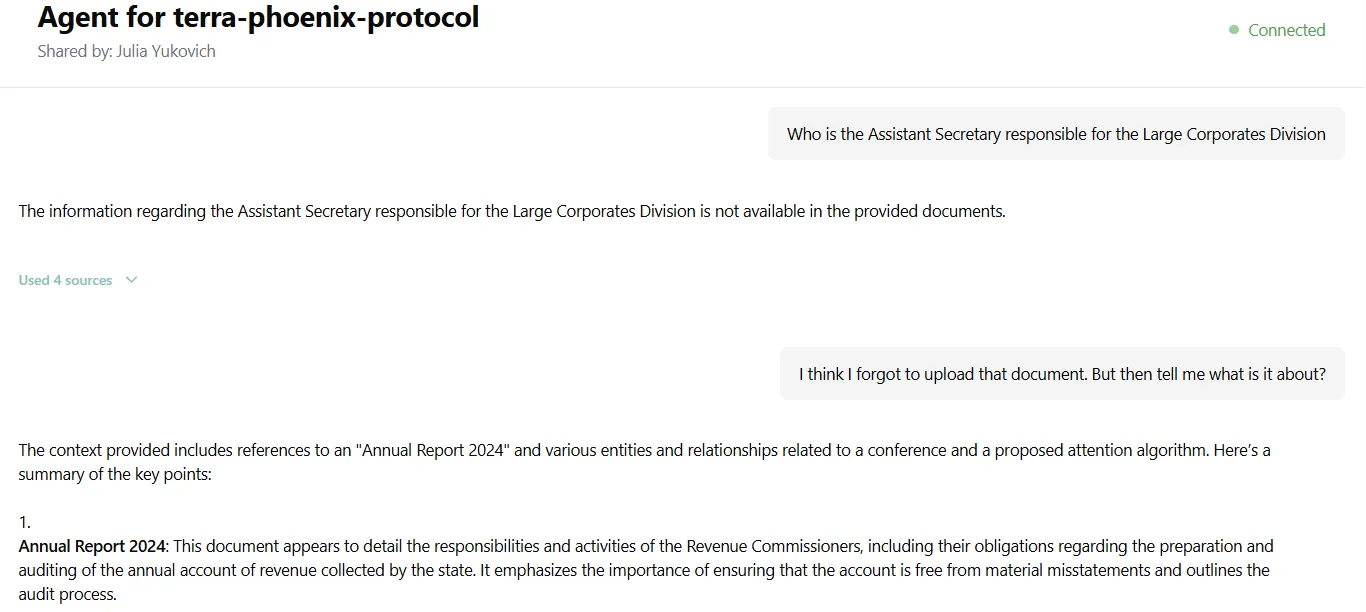
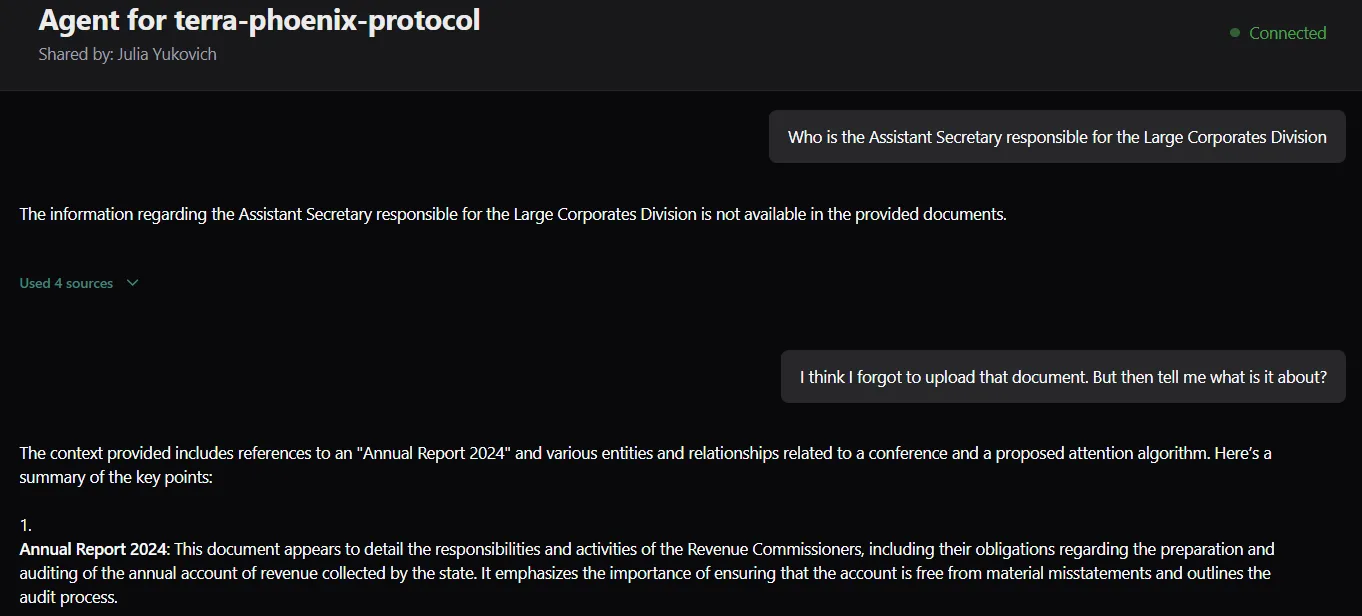
The shared view shows the flow name, who shared it, and a live chat interface - no login required.
Rebuilding and Updating the Index
When you add new files to the flow or replace existing ones, click Recalculate Index. Only changed and new files are re-processed - existing chunks stay in place, so updates are fast.
Knowledge Graph
Every RAG index automatically builds a Knowledge Graph - a network of entities and relationships extracted from your documents. This lets you visually explore what your documents contain before and while asking questions.
The graph is especially useful before you start querying: it shows you which entities dominate your documents, how they cluster, and which relationships exist - so you know what to ask. In the life sciences example above, the graph revealed a site-level pattern across adverse event reports that the chat queries alone wouldn't have surfaced.
See the full Knowledge Graph documentation for how to navigate, expand nodes, read edge weights, and use the entity detail panel.
Real-World Scenarios
The following examples show how teams use RAG against their own data - what they indexed, what they asked, and what they got back.
Life Sciences - Clinical Trial Review
A biotech team indexed 80 clinical study reports across three indications. Their medical affairs lead needed to identify all adverse events above Grade 3 associated with a specific compound across all trials - a review that would normally take two analysts several days.
"What serious adverse events above Grade 3 were reported for Compound X across all Phase 2 studies?"
The query surfaced findings from 11 reports with direct source citations, including two studies that had only peripheral mentions in the executive summaries. The team used Global mode to ensure the answer drew from across the full corpus rather than the closest matching passages.
The Knowledge Graph built during indexing then let them visualize which clinical sites and investigators appeared most frequently across those adverse event reports - surfacing a site-level pattern that wasn't visible from the chat alone.
Legal - M&A Due Diligence
A deal team indexed a 200-document data room for an acquisition: supplier agreements, IP assignments, employment contracts, and regulatory filings. They needed to flag any indemnification caps below $5M before the closing call - a task normally delegated to junior associates reviewing each document manually.
"Which supplier agreements have indemnification caps below $5 million?"
The system returned 3 contracts in seconds, each with the exact clause text and document reference. A follow-up question - "Do any of those agreements have automatic renewal clauses expiring within 90 days?" - ran against the same index and flagged one contract requiring immediate action.
Finance - Multi-Entity Reporting
A finance team received quarterly management reports from 9 regional offices. Consolidating performance data into a board summary required reading all 9 reports and manually reconciling the numbers.
After indexing all 36 quarterly reports (4 years × 9 regions), they could query across all of them at once:
"Which regions missed their EBITDA targets for two or more consecutive quarters?"
The answer cited specific quarters and regions, with the underlying numbers pulled from each report. The team switched to Hybrid mode so the system could decide whether to pull from structured tables or narrative commentary depending on the question.
Engineering - Incident Knowledge Base
An engineering team indexed three years of post-mortems, runbooks, and incident logs. When a new on-call engineer encountered a database timeout error, instead of searching Confluence and Slack:
"What caused database timeout errors in the authentication service and how were they resolved?"
The system returned the two relevant post-mortems with root cause analysis, the configuration change that fixed it, and a link to the monitoring runbook - all from within the same indexed document set.
Use Cases
- Legal - Ask questions across all contracts, flag clauses, compare terms
- Research - Query a corpus of papers, find contradictions, summarize findings
- Finance - Cross-reference reports, extract KPIs, compare periods
- HR & Compliance - Search policy documents, employee handbooks, audit trails
- Customer Support - Build a knowledge base from tickets, FAQs, and product docs
- Internal Wiki - Make your team's documentation instantly searchable
Responsible Developers: Aman, Julia, Usama.