Airtable Connector
Use Airtable data for AI pipelines with automatic synchronization. Sync your bases, tables, and views.
Use Airtable data for AI pipelines with automatic synchronization.
Setup Instructions
1. Navigate to Integrations
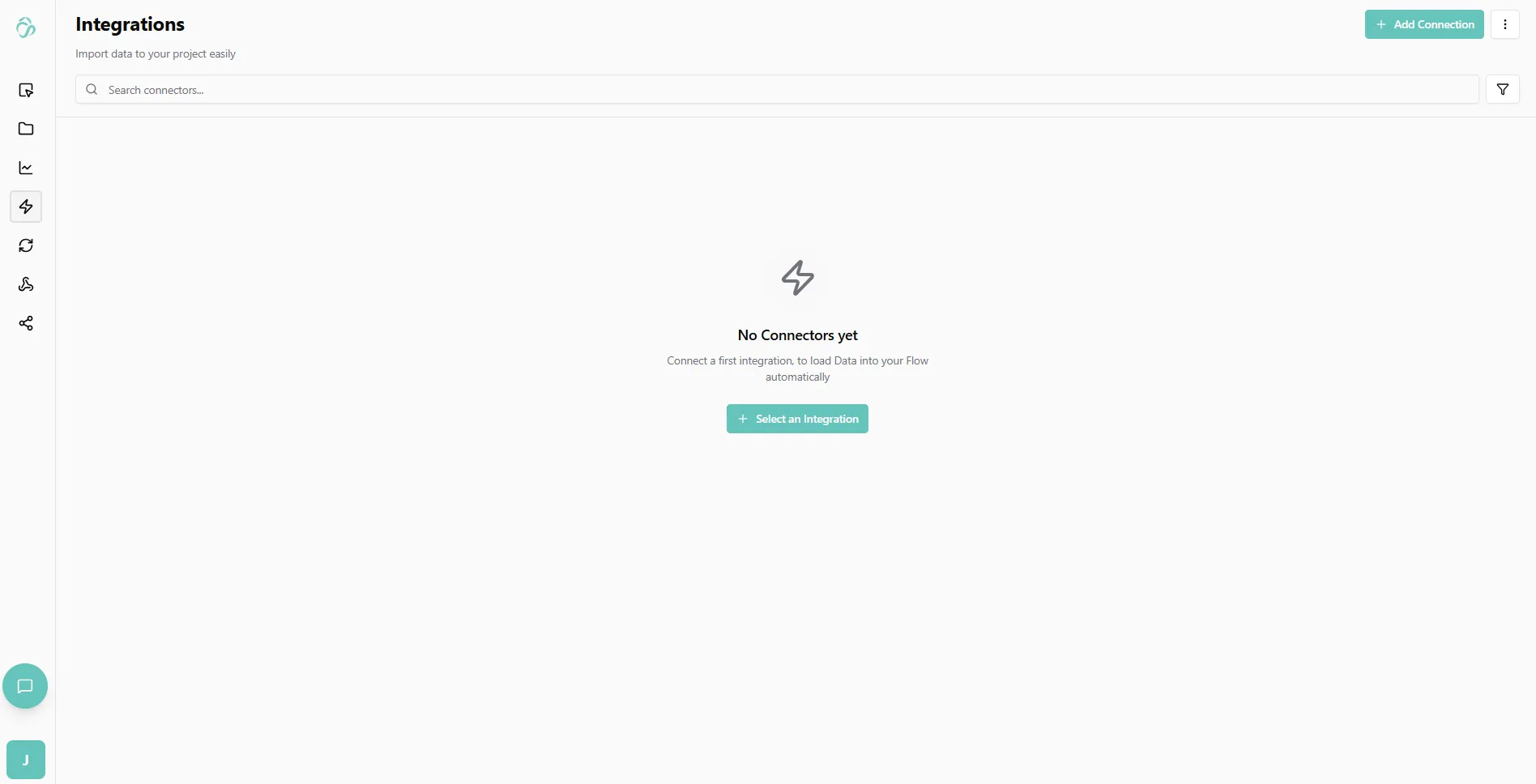
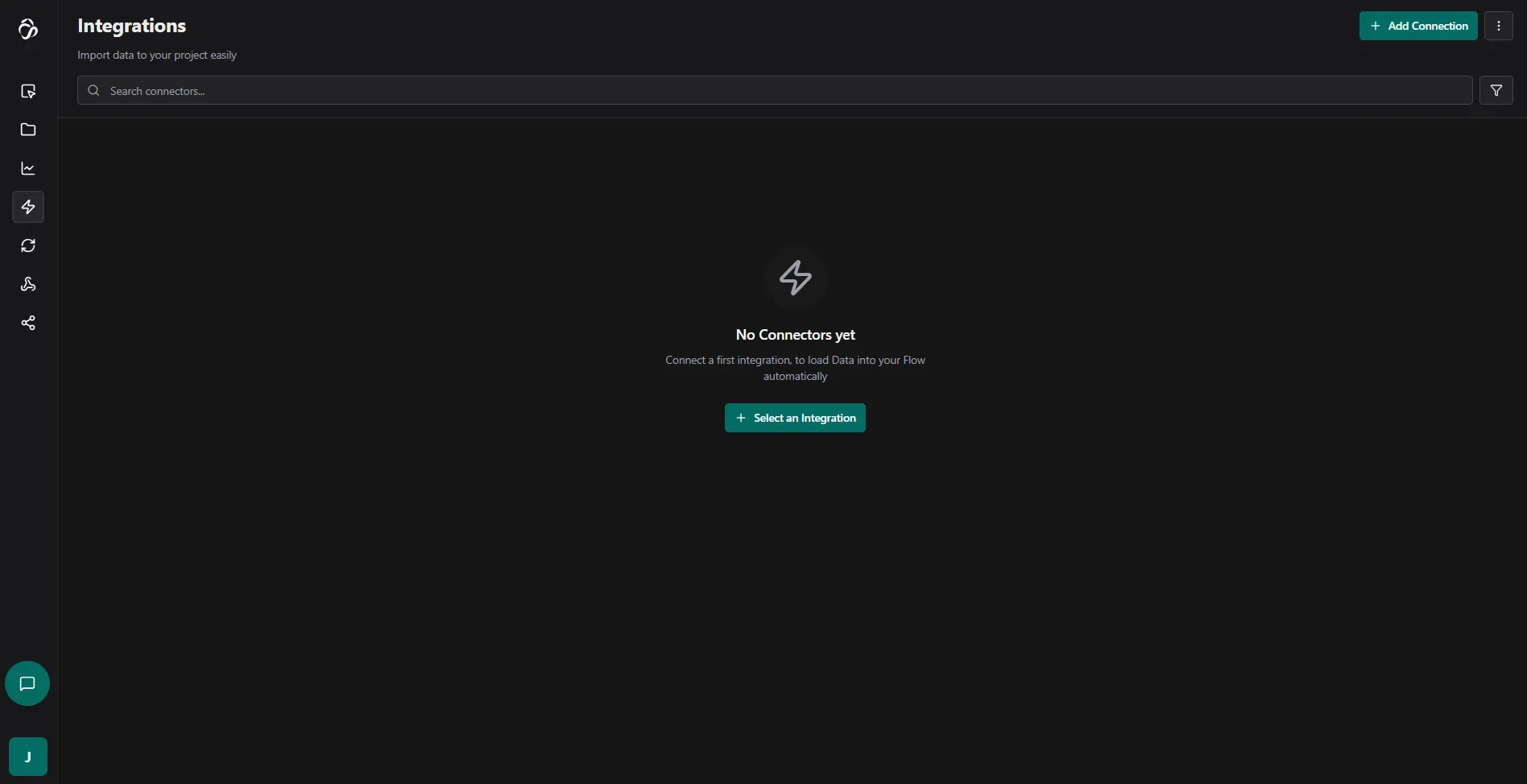
Go to one of your flows, then click on the Data Integrations tab and select Select an Integration.
2. Select Your Data Source
Type Airtable in the search and select it. It's usually the first option in the list.
3. Create an Access Token
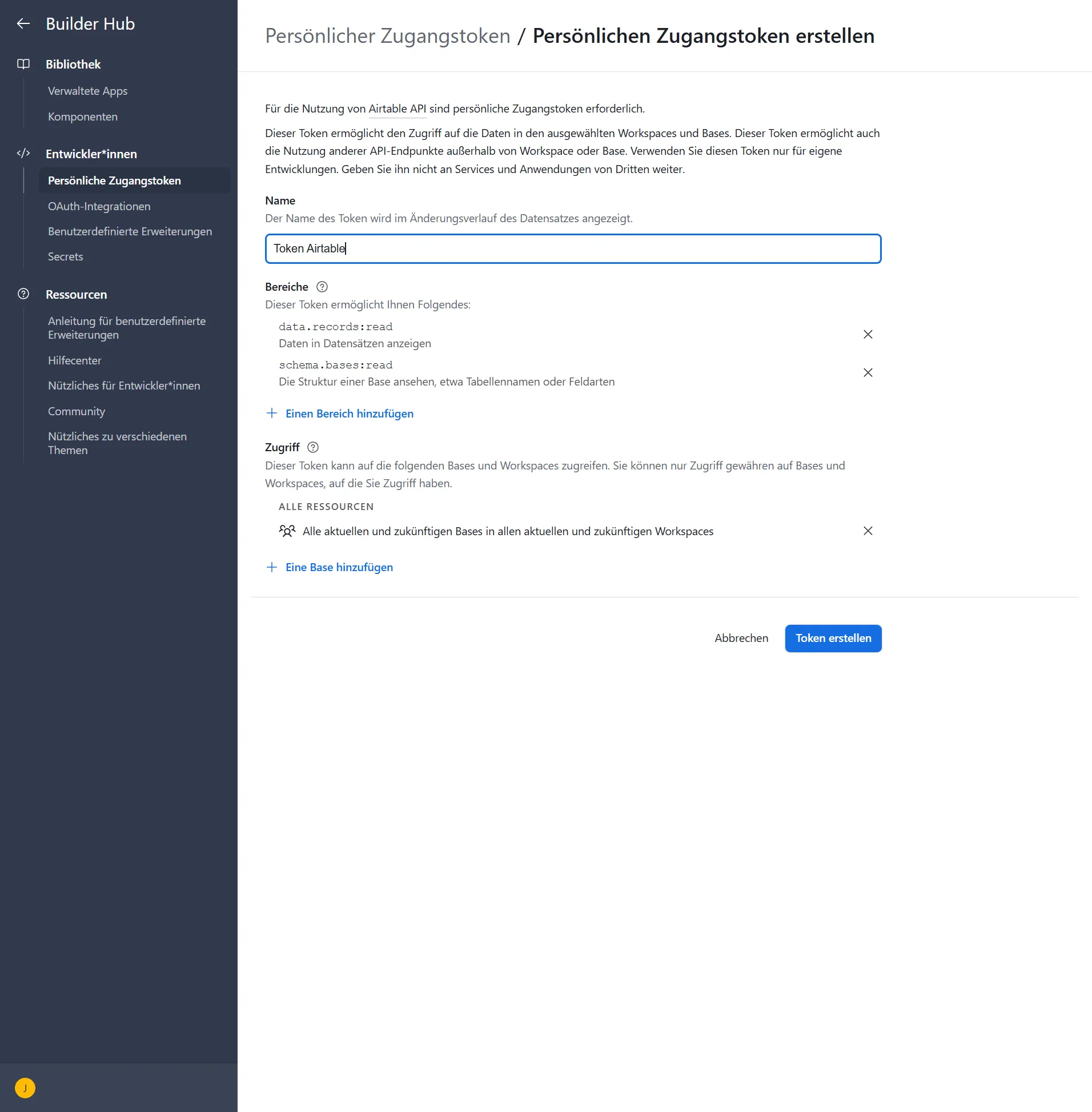
To use Airtable, you need to create an Access Token (API Key):
- Visit https://airtable.com/create/tokens
- Give your token a descriptive name (e.g., "Token for AIcu Flow")
- Configure Permissions - This is very important:
- data.records:read - Required to read data from tables
- schema.bases:read - Required to read the schema/structure
- data.records:write (Optional) - Only add if you want to sync data back to Airtable
- Configure Access Scope:
- You can give access to all workspaces
- Or limit it to specific tables for better security
- Click Create Token
- Important: Copy and save the token immediately - you won't be able to see it again after you leave this page
4. Configure the Connector
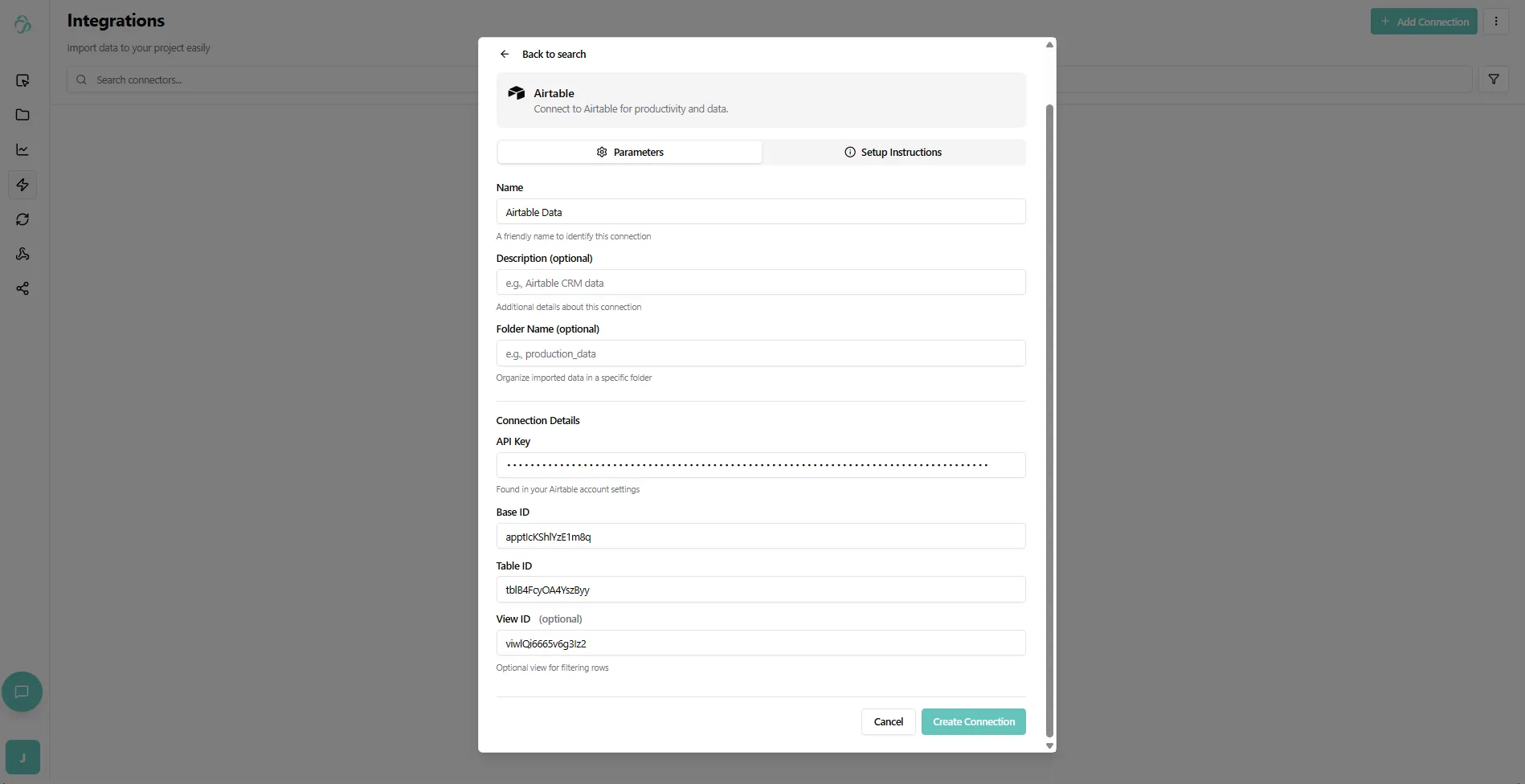
Back in the connector setup, fill in:
- Connector Name: Give your connector a descriptive name (e.g., "Airtable 2026")
- API Key: Paste the access token you just created from Airtable
Note: After you create the connector, you won't be able to see the API key again for security reasons. However, you can always update it if needed.
5. Get Your Airtable IDs
Open the table you want to import in Airtable and look at the URL in your browser:


How to Parse the URL:
A typical Airtable URL looks like:
https://airtable.com/apptIcKShlYzE1m8q/tblB4FcyOA4YszByy/viwlQi6665v6g3Iz2?blocks=hideTo extract the IDs:
- Remove everything after the question mark (
?blocks=hide) - Remove the
https://airtable.com/part - You're left with three parts separated by slashes (
/) - Important: Remove the slashes when pasting into the connector fields
Identify each part:
- Base ID: The first part, starts with
app(e.g.,apptIcKShlYzE1m8q) - Table ID: The middle part, starts with
tbl(e.g.,tblB4FcyOA4YszByy) - View ID: The last part, starts with
viw(e.g.,viwlQi6665v6g3Iz2)
6. Complete the Setup
After filling in all the connector details, it should look like this:
Your import job is now scheduled and will run automatically.
7. Create a Sync Job (Optional)
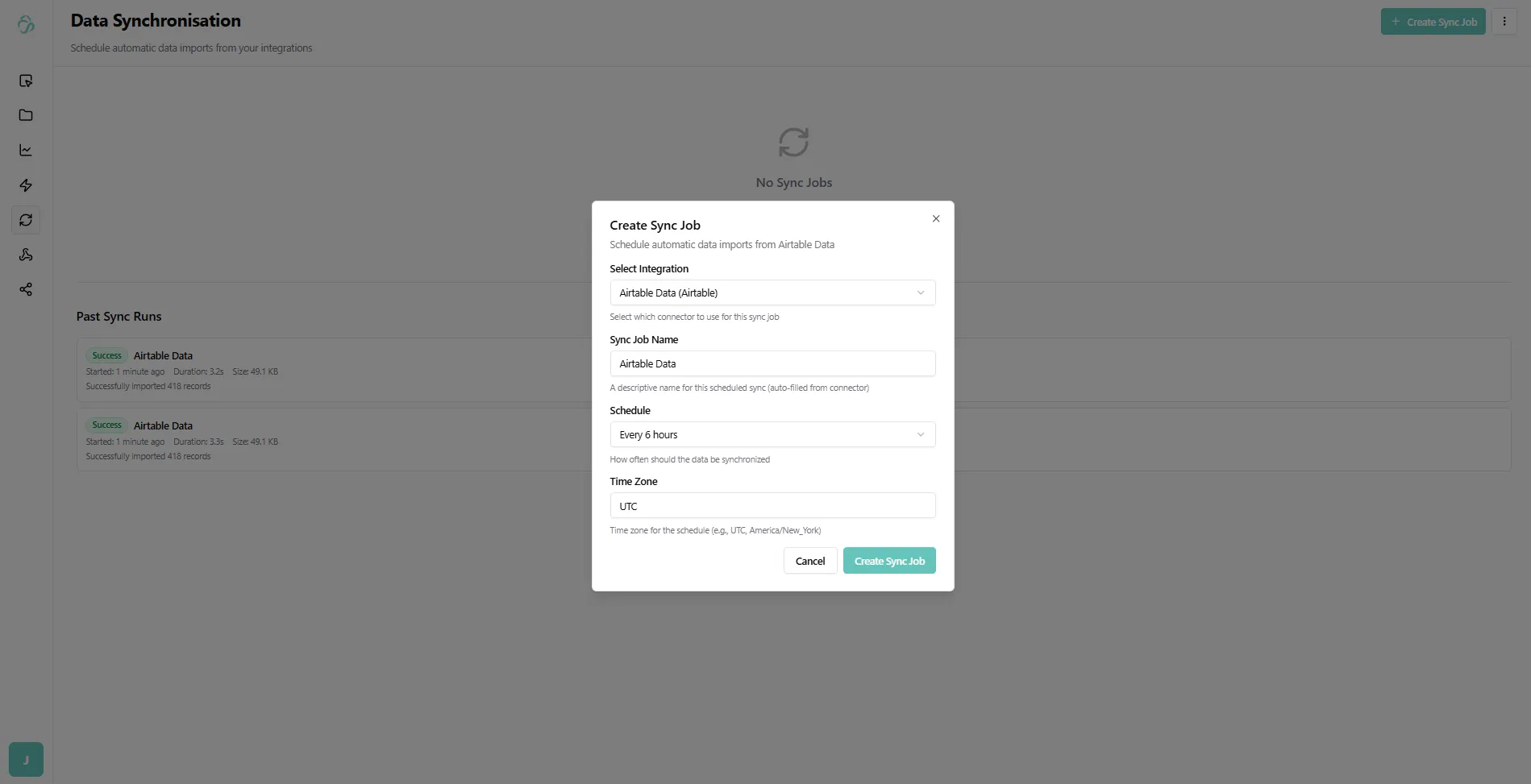
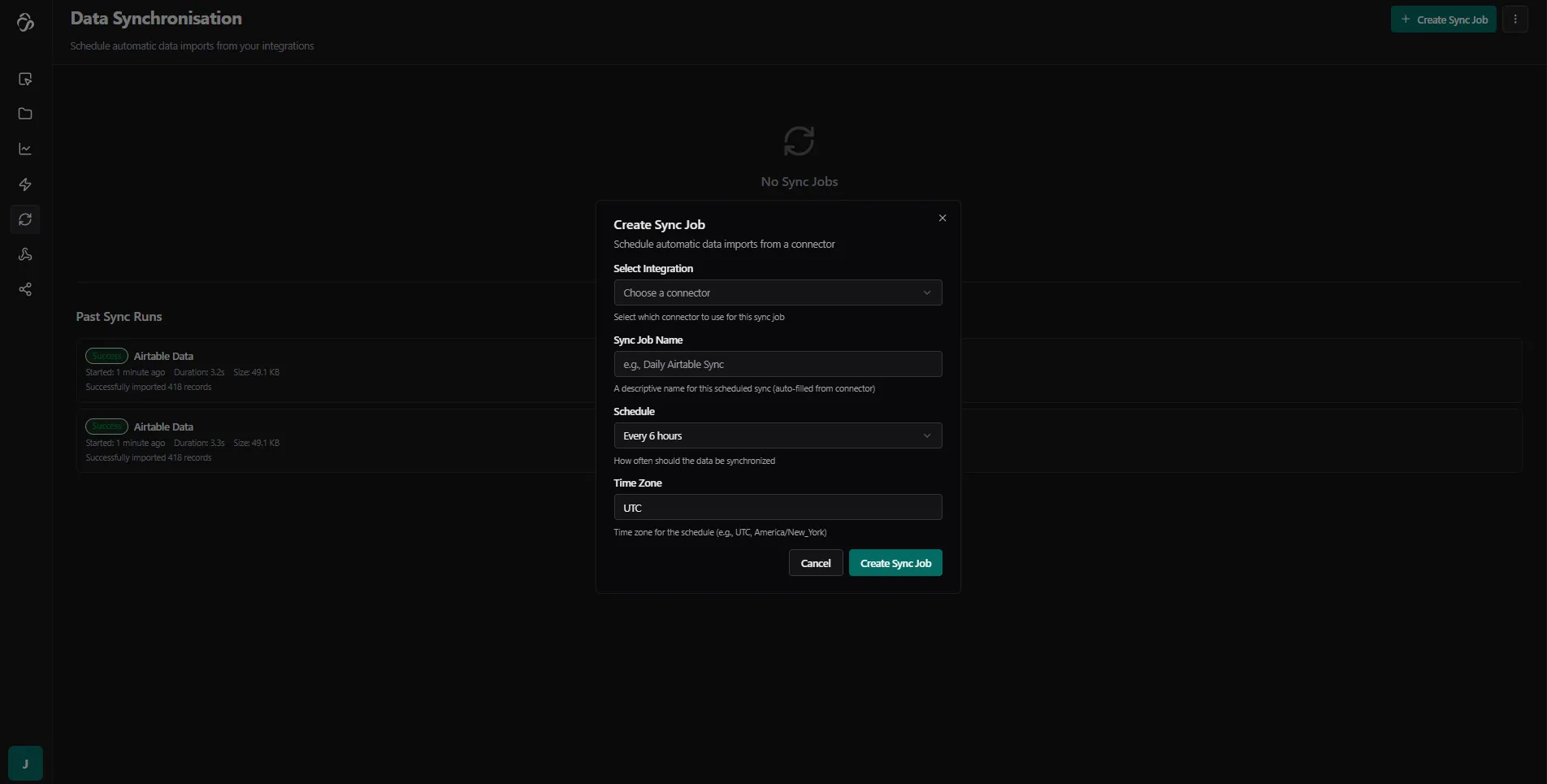
To automatically update the data on a regular schedule, you can create a sync job:
- Navigate to Data Synchronization and click on the calendar icon
- Click Create Sync Job
- Select the Airtable connector you just created from the dropdown
- Give the sync job a descriptive name
- Choose Sync Interval:
- Every 3 hours - Good for regularly updated data
- Every minute - For real-time data needs (use cautiously)
- Custom - Set your own schedule (e.g., daily at specific time)
- Click Save to activate the sync job
Your data will now automatically sync from Airtable based on the schedule you configured.
8. Monitor and Access Your Data
Check Import Status:
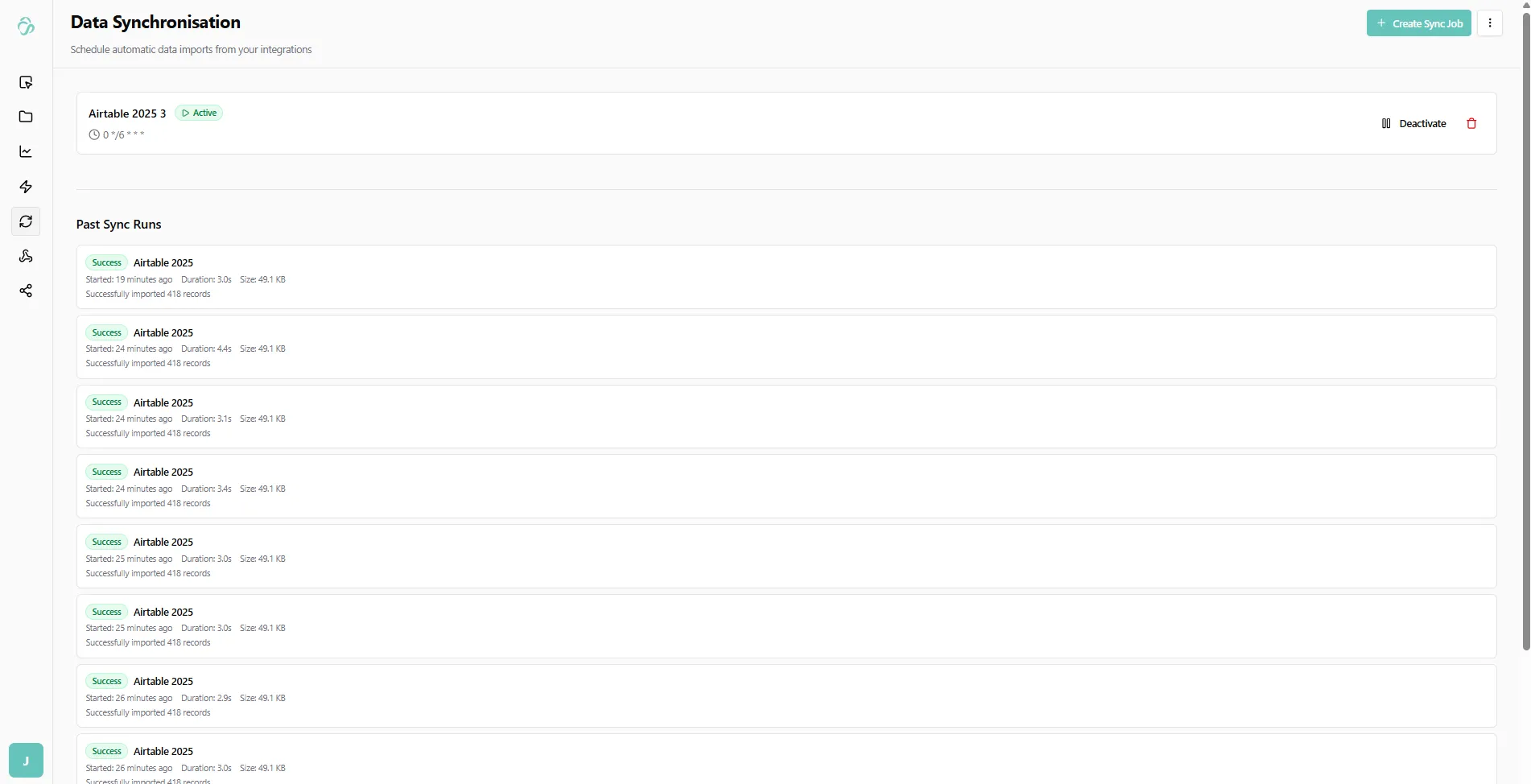
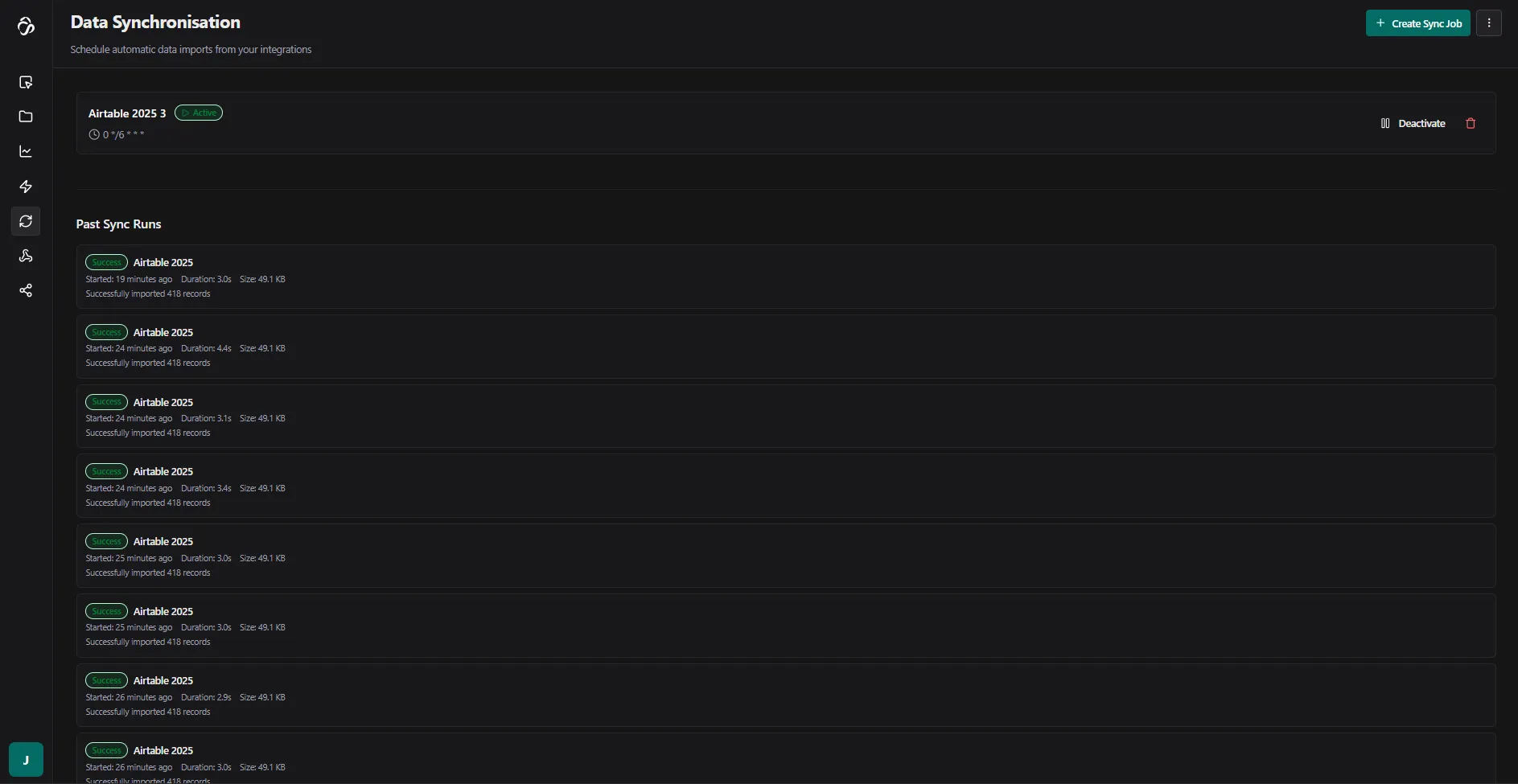
Navigate to Data Synchronization to monitor your import. You'll see whether the import was successful or failed.
Import Job Statistics:
When an import job completes, you'll see detailed statistics:
- File Size: Total size of imported files in bytes
- Imported Files: Number of files that were imported
- Duration: How long the import took to complete
View Your Imported Data:
- Once the sync is complete, go to File Manager (Data Management)
- Navigate to the folder where your data was stored
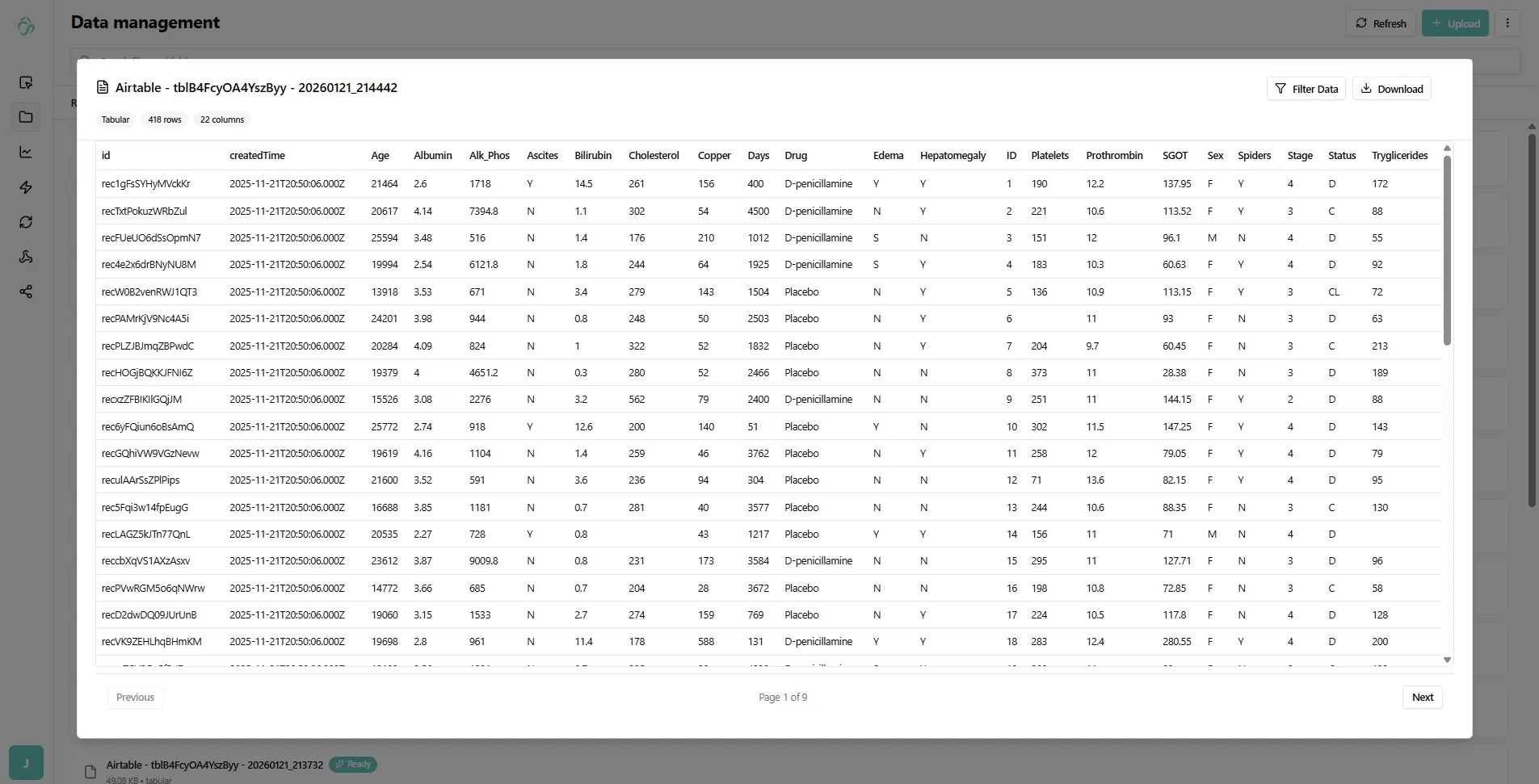
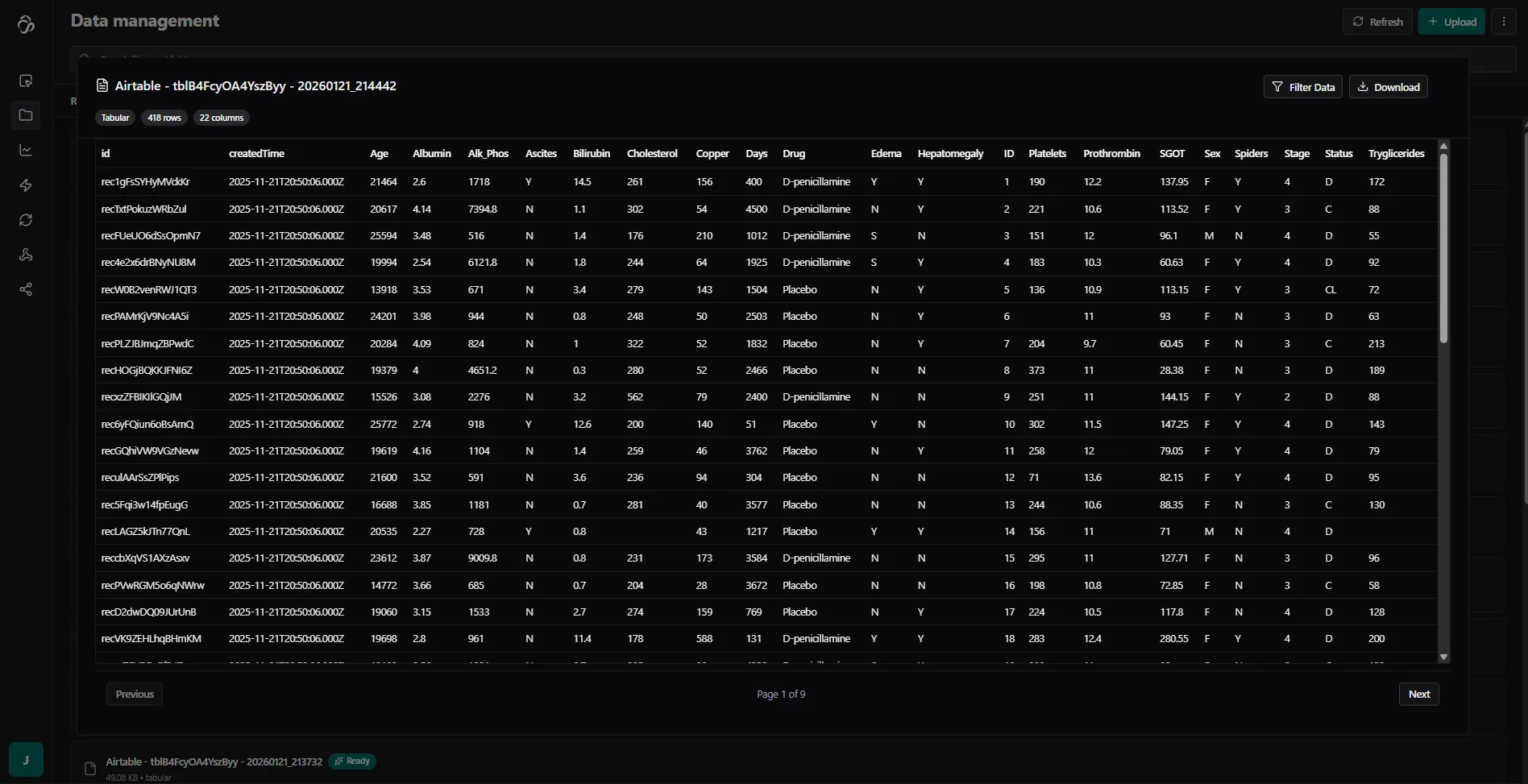
- Click on any file to preview the data from your Airtable table
- All rows and columns from your Airtable will be available
- You can now use this data in your AI pipelines and flows
Important Notes:
- The synchronized data will automatically appear in the Data Management section
- On every sync, the old data will be overwritten with fresh data from the source by default
- This ensures your data stays up-to-date with the connected system
- If you do not want this behaviour, you can adapt the settings and enable versioning