AI Model Inference
Run predictions using trained AI models in the Flow Editor
Overview
Use trained AI models to make predictions on new data. This guide walks you through the complete process of setting up, configuring, and running inference with both pre-trained models and your custom trained models.
Prerequisites
Before you begin, ensure you have:
- Data imported into the Data Module
- A trained model (either from the Training flow or a pre-trained public model)
Required Nodes
To run inference, you need a minimum of four nodes:
- Select Artifact: Define which artifacts your model needs to run predictions on
- API Input: Define what data you send to the model to create predictions
- Use AI Model: Configure the model and inference parameters
- Preview Output: View your prediction results
Add these nodes one by one and connect them in sequence.
Step-by-Step Inference Process
1. Set Up Your Flow
Navigate to the Flow Editor and select the Node Library. Add the four required nodes and connect them.
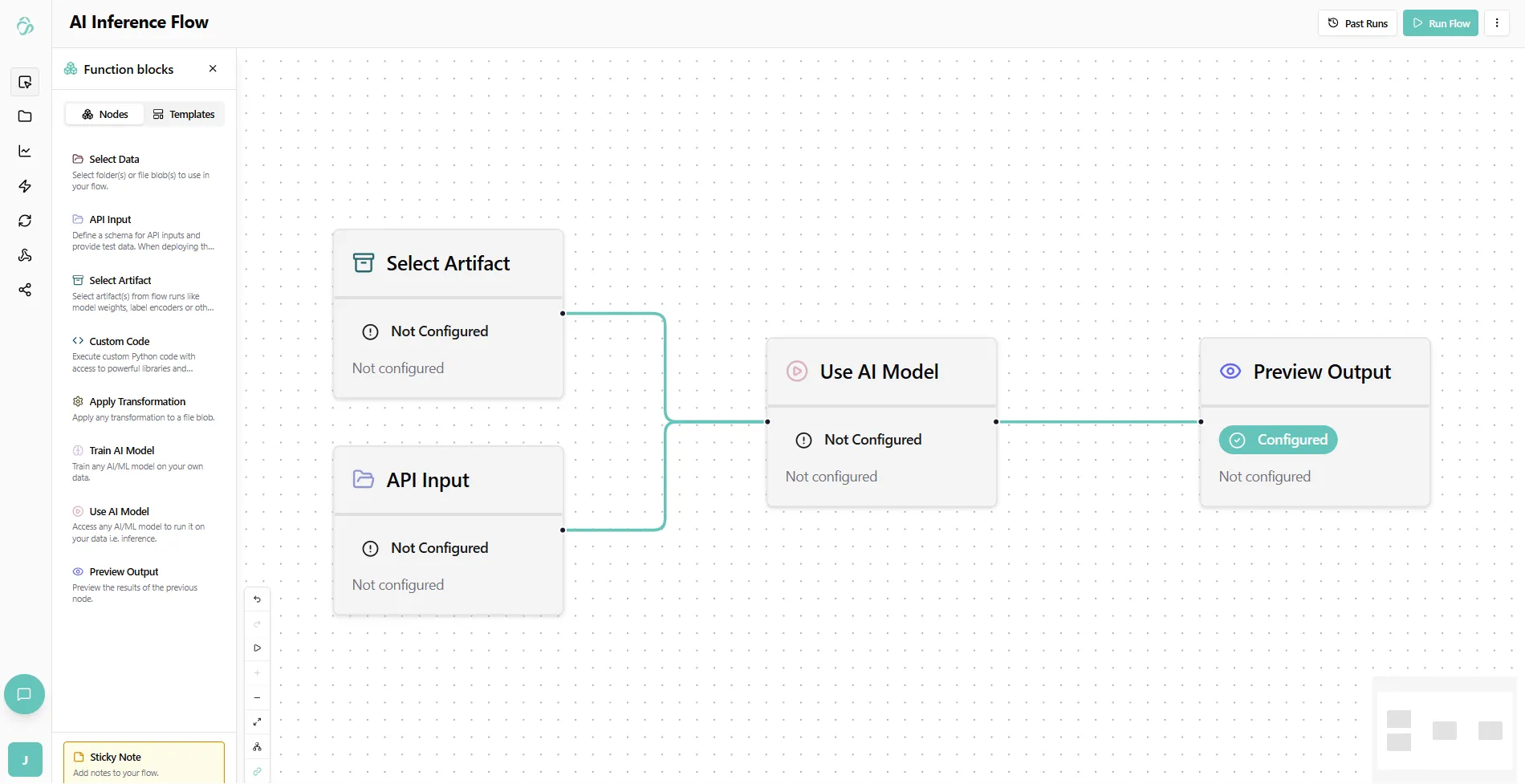
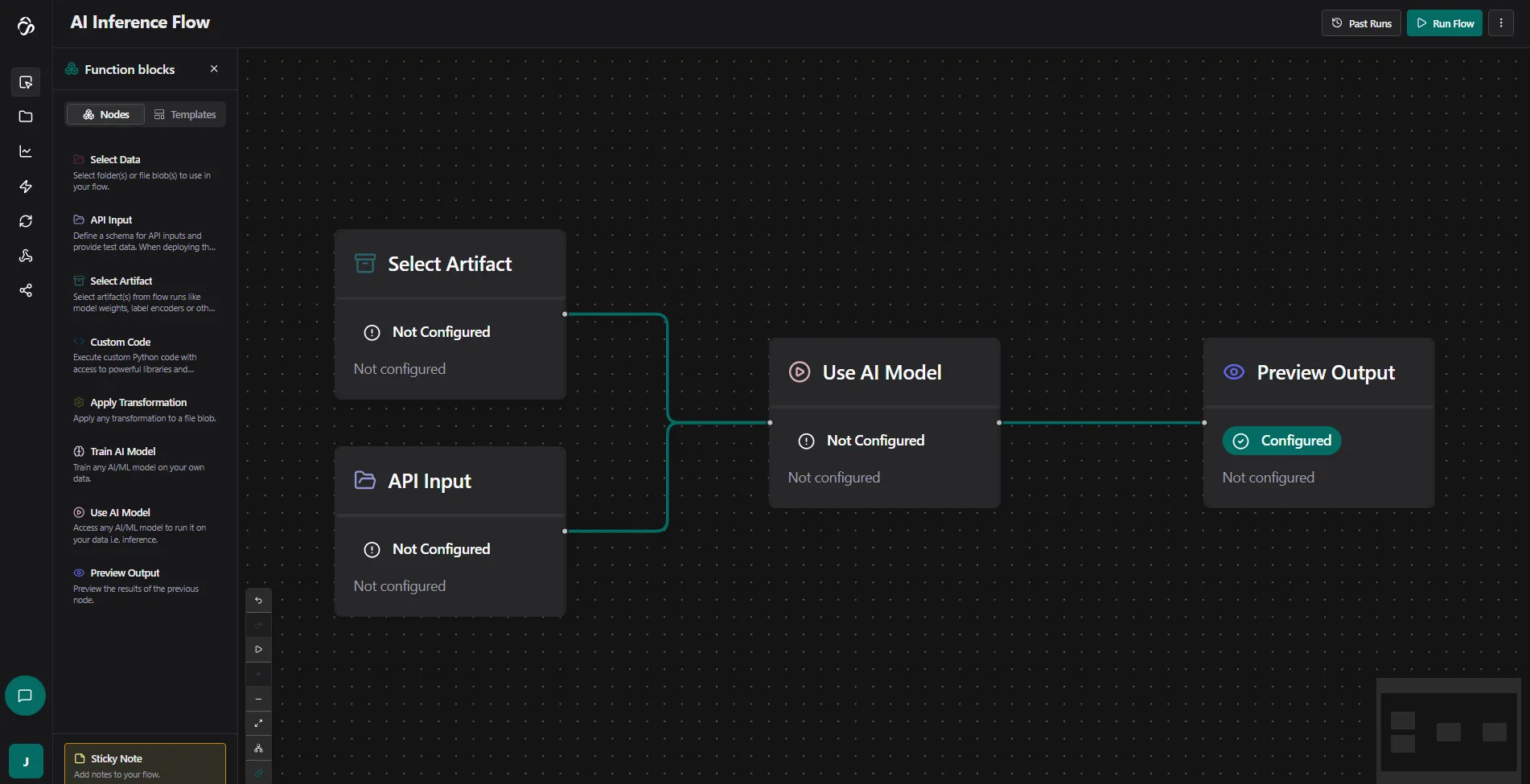
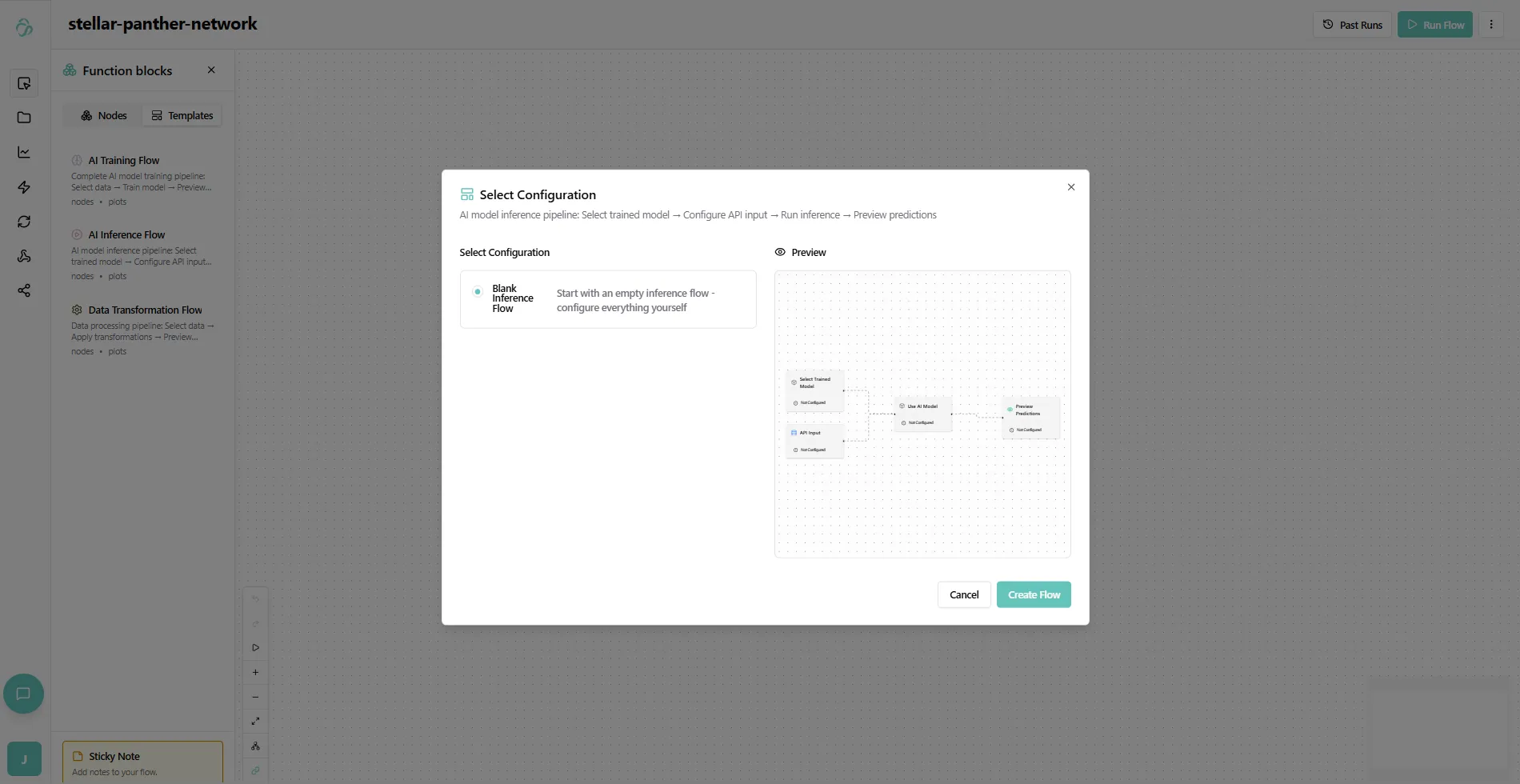
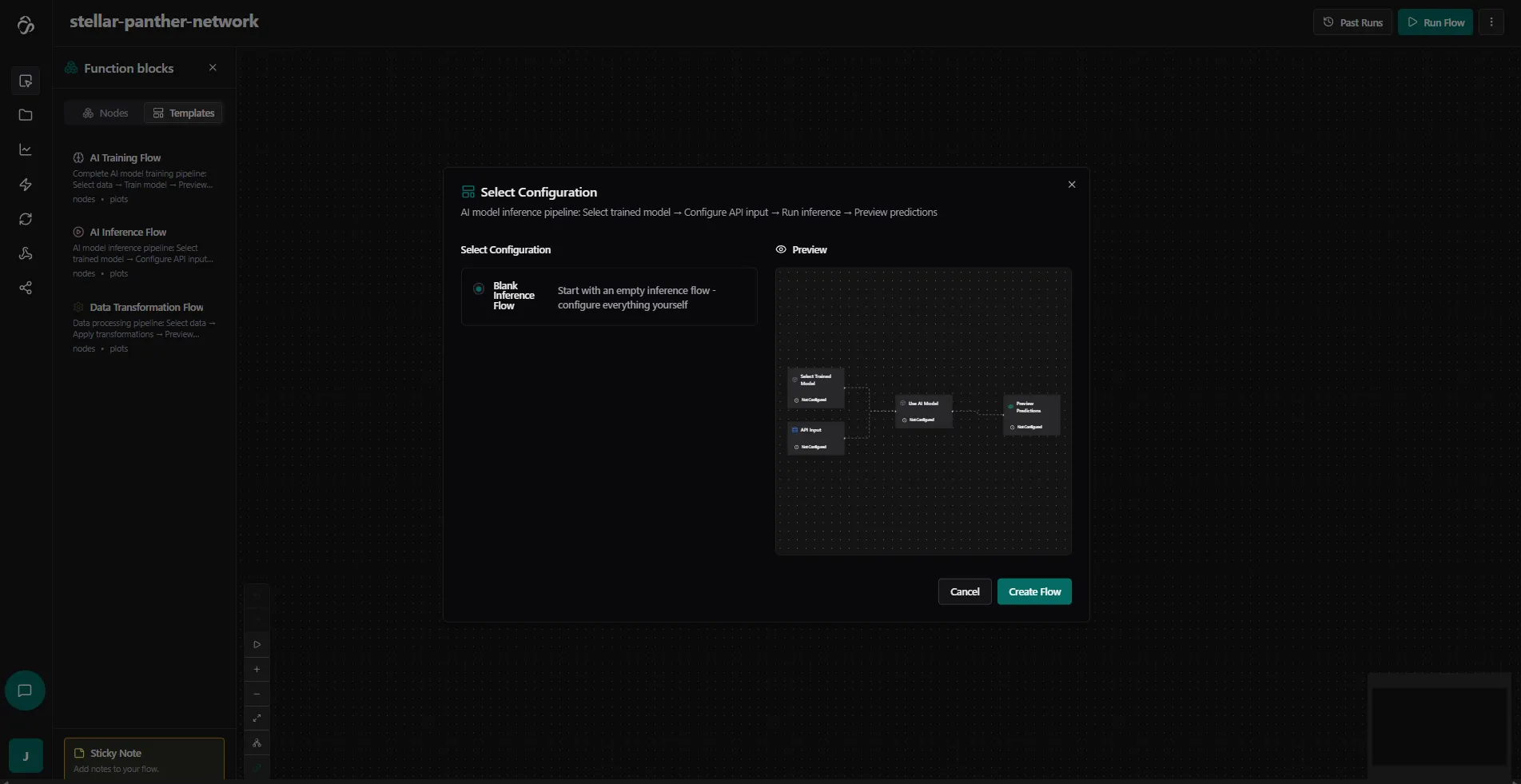
Alternatively you can add them in the chat or from an inference template. Simply select the node library, navigate to the template tab and select Ai Inference Flow. Here we are choosing the blank flow.
2. Select Your Artifacts
Click on the Select Artifact node and open the Artifacts tab. Choose the artifacts you want to use with the AI model for inference.
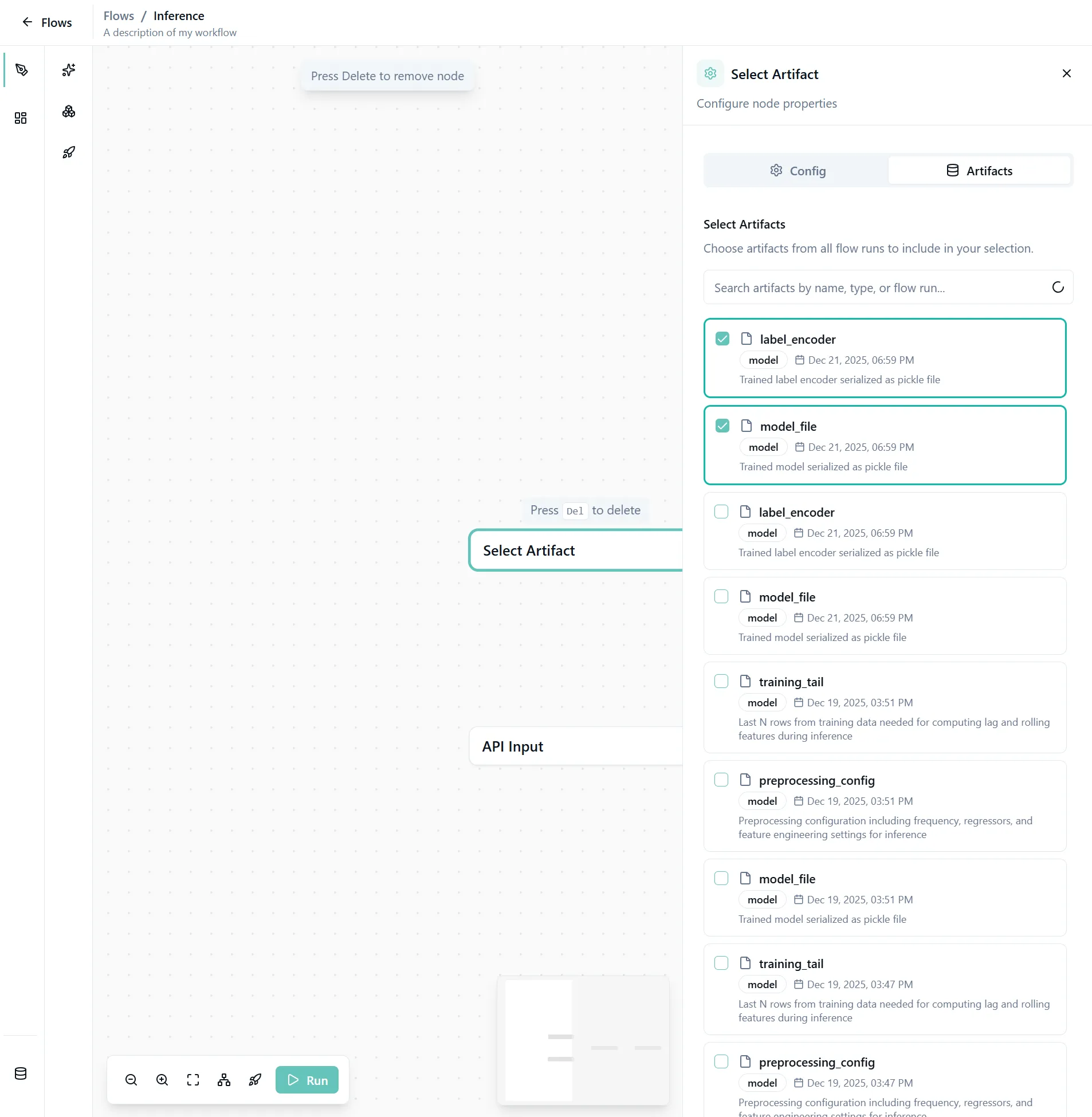
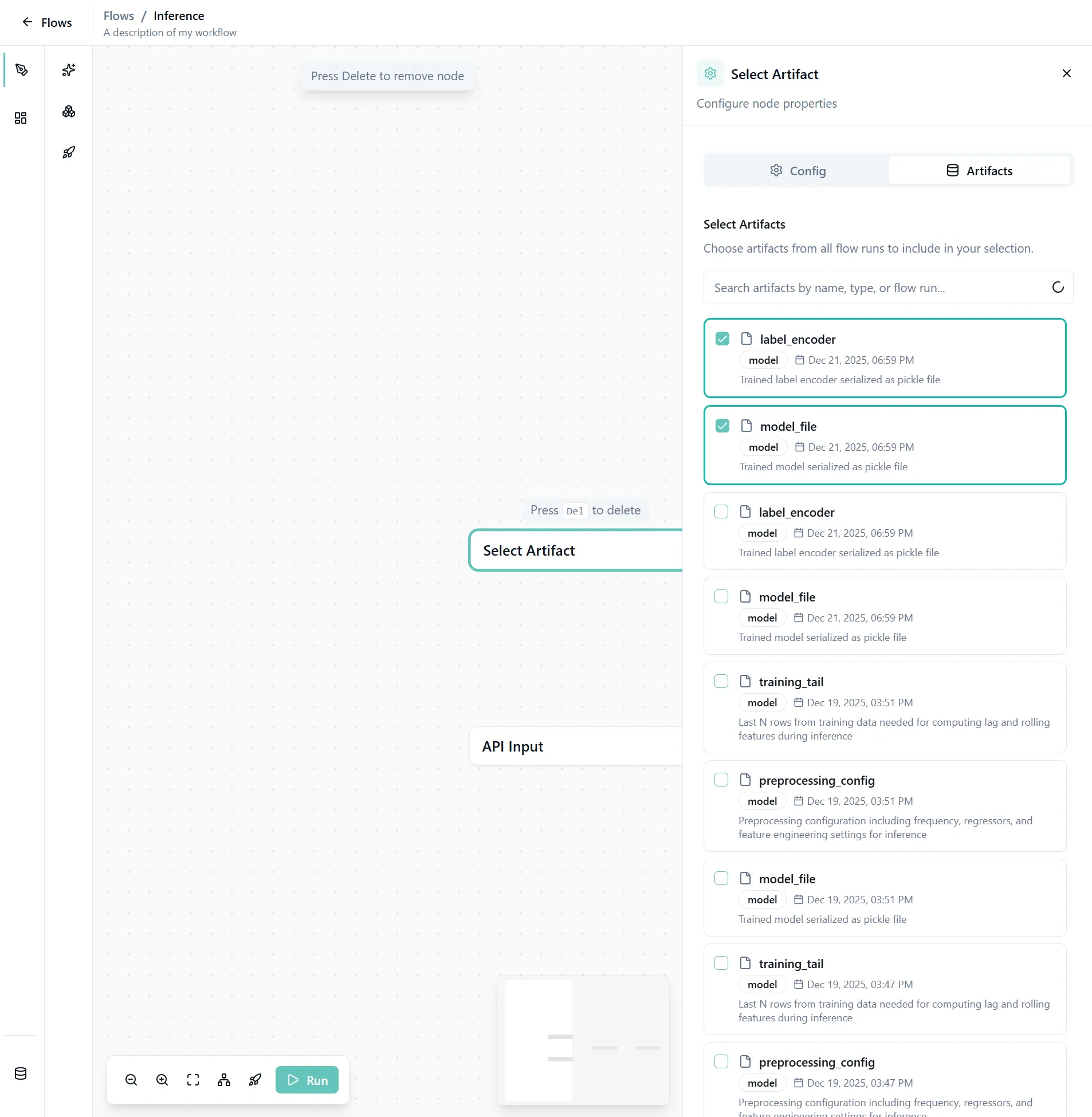
Important: You can check what artifacts you need in your Training flow.
3. Configure the API Input Node
The API Input node defines the structure of data you'll send to the model for predictions.
Add a Schema
Define the JSON schema for your input data:
{
  "type": "object",
  "$schema": "http://json-schema.org/draft-07/schema#",
  "required": ["Age", "Sex", "Status", "Spiders", "Drug", "Copper", "Alk_Phos"],
  "properties": {
    "Age": { "type": "number" },
    "Sex": { "type": "number" },
    "Drug": { "type": "number" },
    "Copper": { "type": "number" },
    "Status": { "type": "number" },
    "Spiders": { "type": "number" },
    "Alk_Phos": { "type": "number" }
  },
  "additionalProperties": false
}
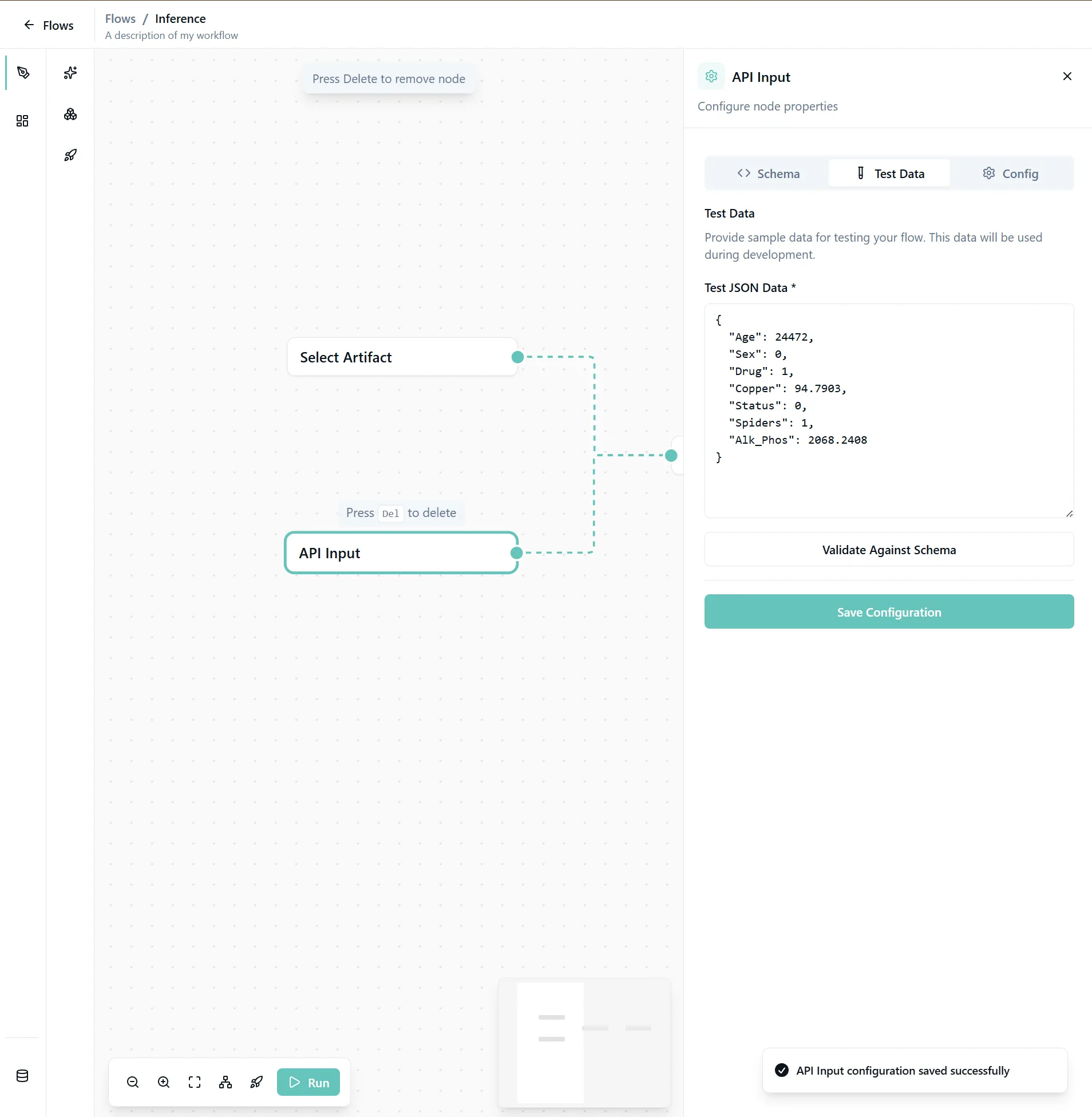
Add Test Data
Provide sample test data to verify your configuration:
{
  "Age": 24472,
  "Sex": 0,
  "Drug": 1,
  "Copper": 94.7903,
  "Status": 0,
  "Spiders": 1,
  "Alk_Phos": 2068.2408
}
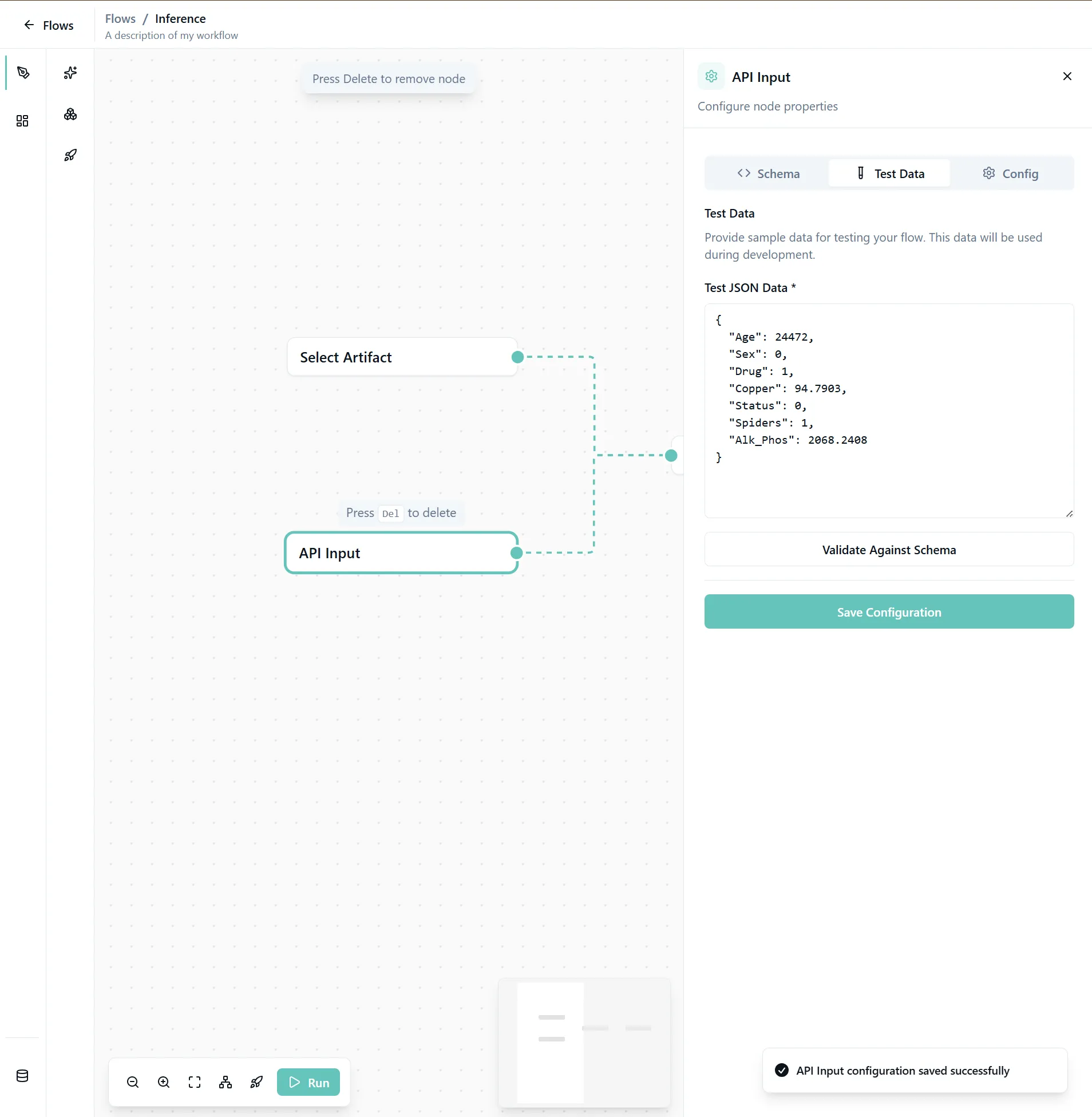
Important: Make sure your inference data has the same structure (columns/features/format) as the data used for training.
4. Configure the Use AI Model Node
Setup Tab
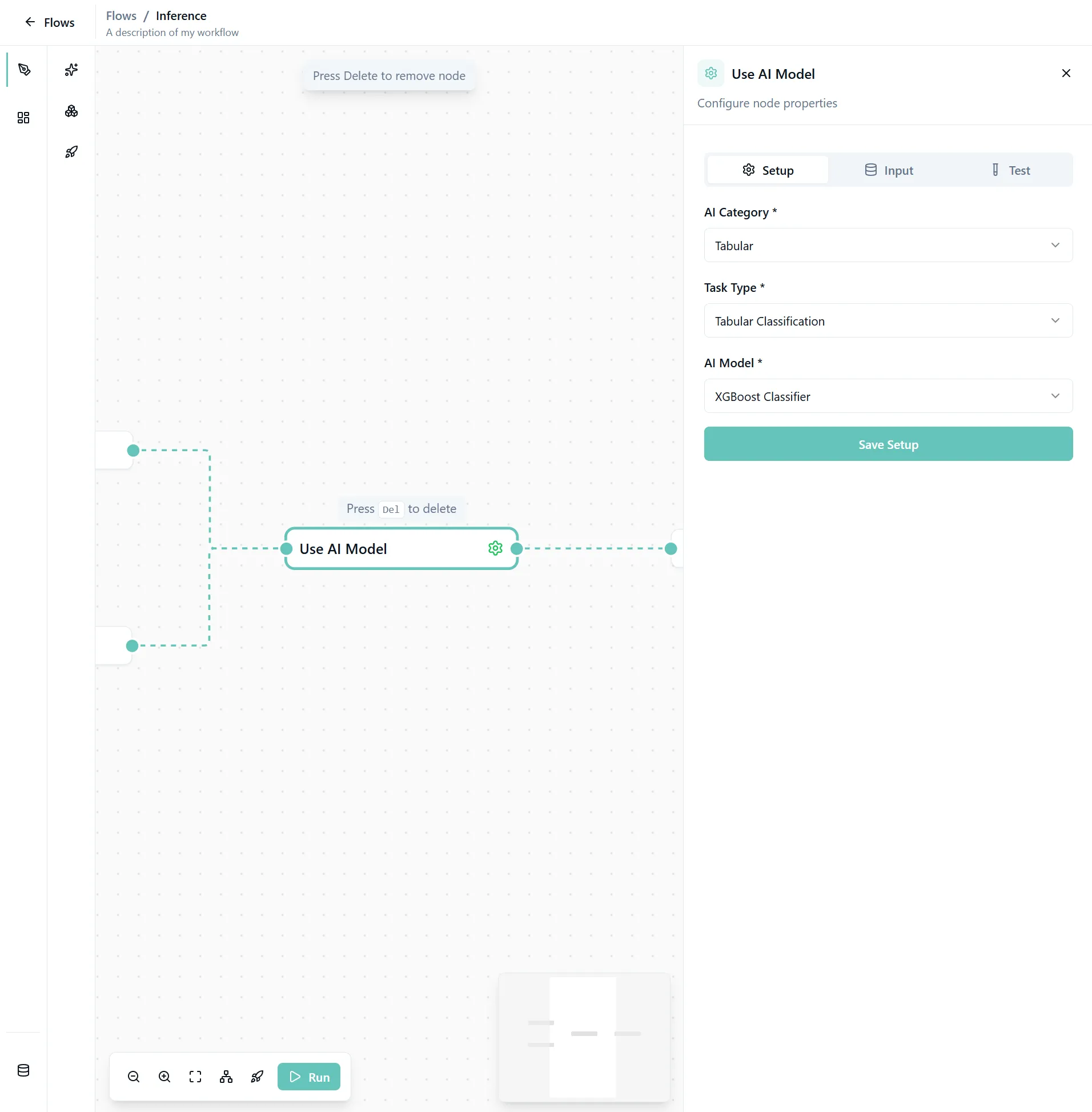
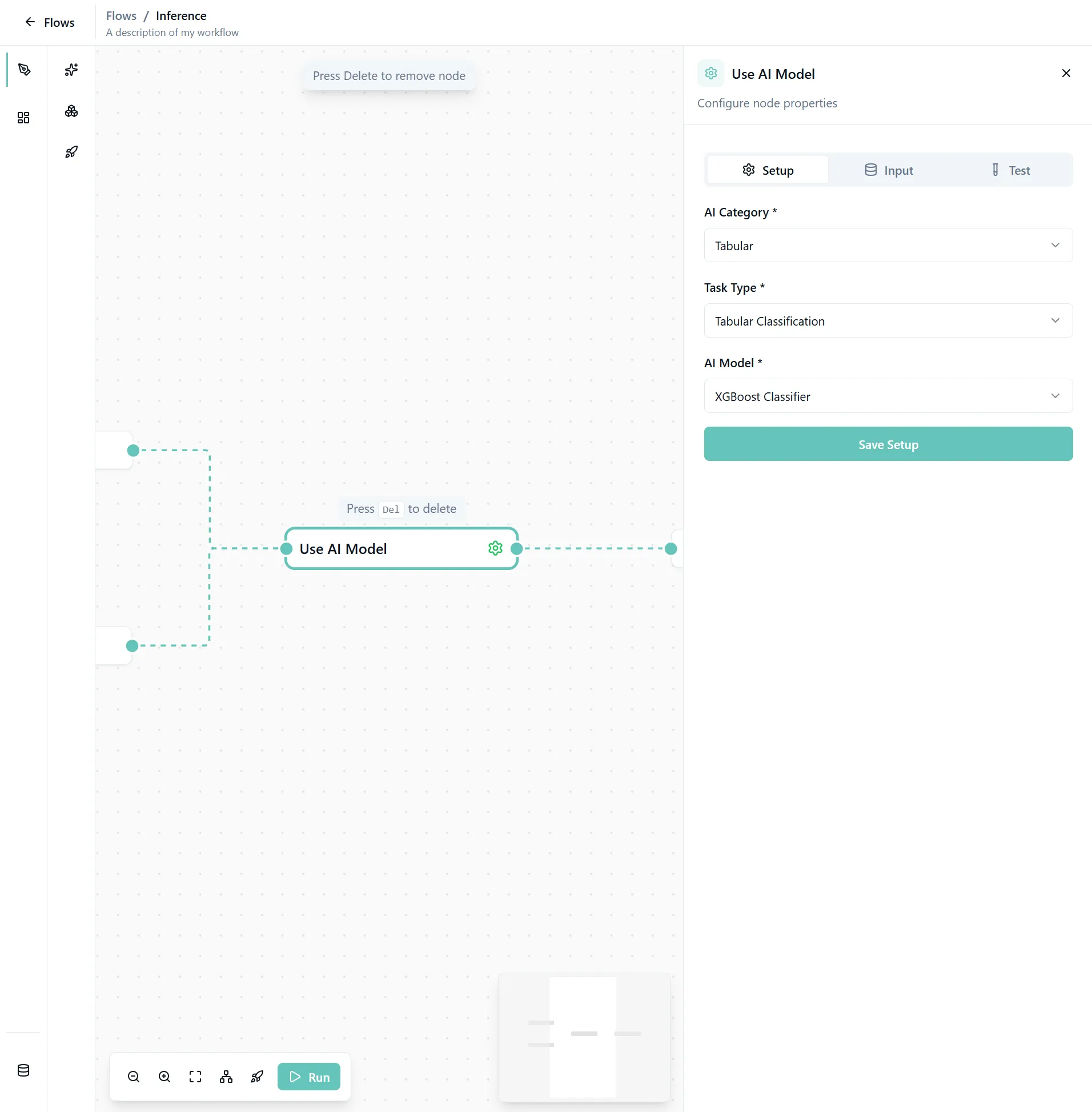
Start with the setup configuration:
- AI Category: Select the category matching your model (e.g., Tabular, Image, Text)
- Task Type: Choose the task type (e.g., Classification, Regression)
- AI Model: Select the model you want to use for inference
Note: This step is automatically preconfigured if you select artifacts from a trained model.
Input Tab
The Input tab allows you to configure inference parameters. In many cases, there is nothing to configure if you've selected artifacts.
Test Tab
The Test tab shows all input requirements. Verify that:
- All required inputs are connected
- Data format matches model expectations
- Artifacts (if using custom models) are properly linked
5. Run the Inference
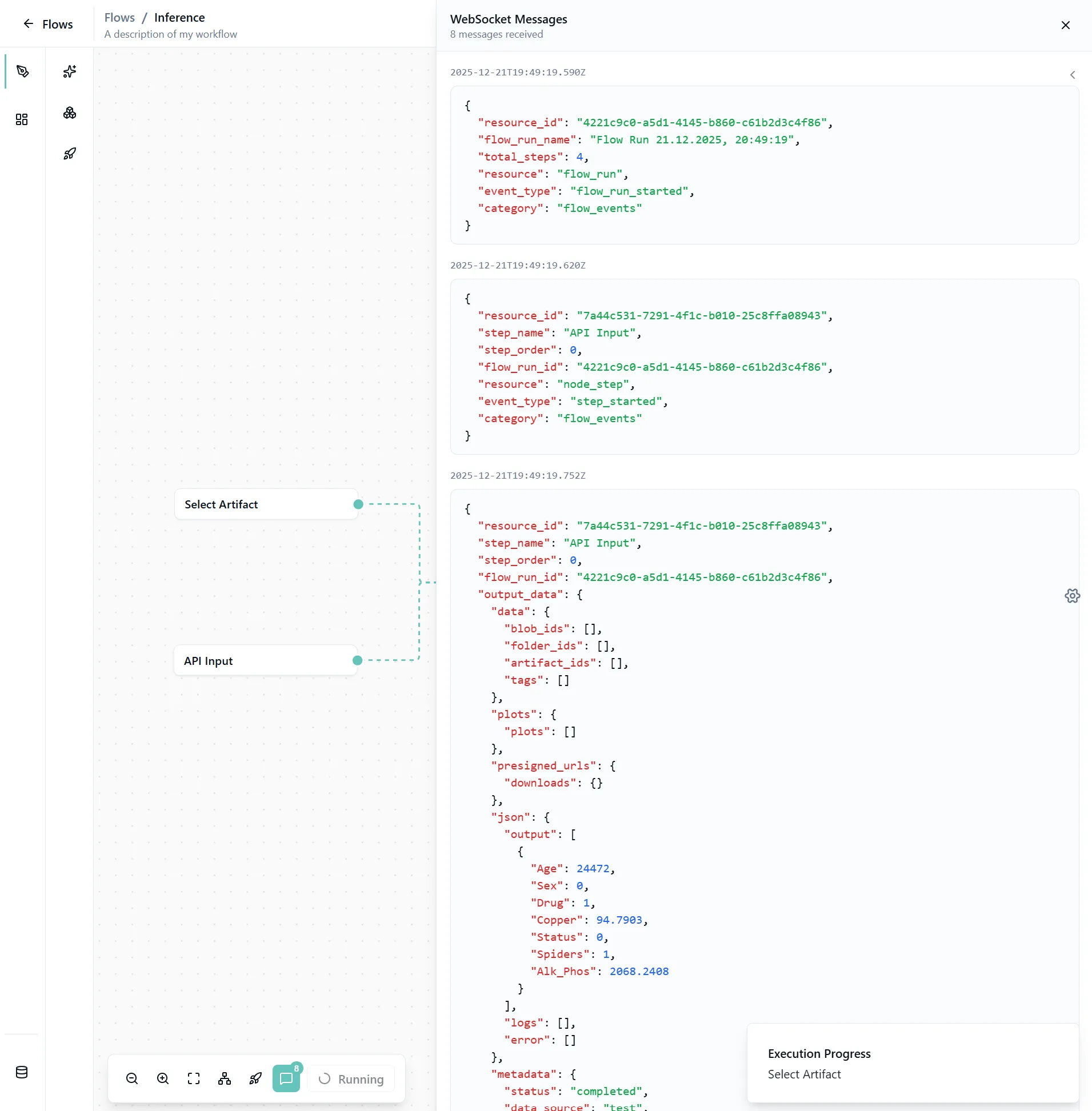
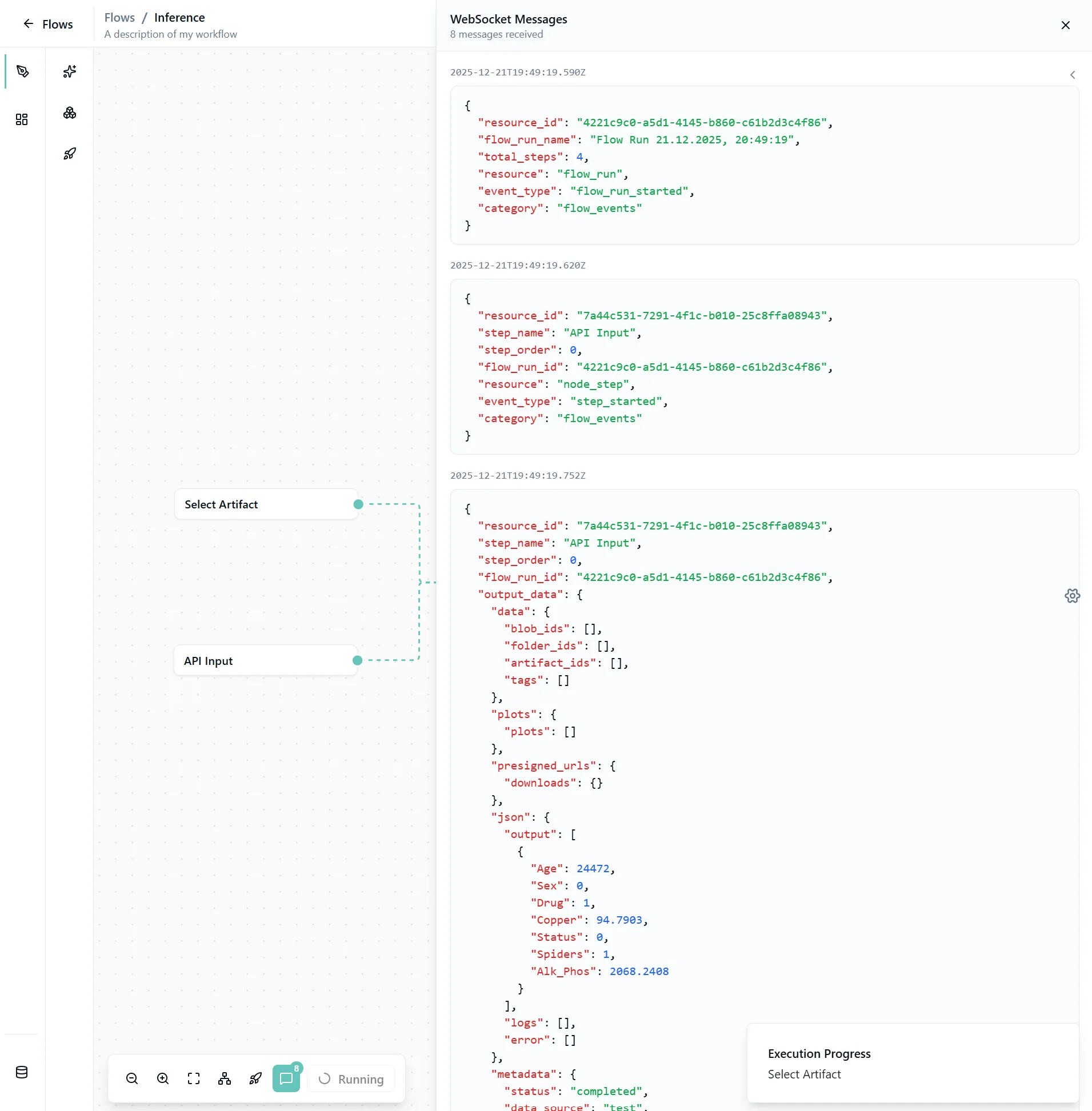
Click Run to start the inference process.
Execution logs will appear showing real-time updates:
Inference Time:
- Tabular and small datasets: Usually very fast (seconds)
- Large datasets or complex models: May take several minutes
- Image/video processing: Depends on batch size and model complexity
6. View Predictions
Once inference is complete, the logs will close and you'll see the results in the preview output node.
Understanding the Outputs
Prediction Results
The inference output typically includes:
- Predictions: The model's predicted values or classes
- Confidence Scores: Probability scores for each prediction (for classification tasks)
- Original Data: Your input data alongside predictions for easy comparison
Common Output Formats
Classification Tasks:
- Predicted class labels
- Confidence scores for each class
- Top N predictions (for multi-class problems)
Regression Tasks:
- Predicted numeric values
- Prediction intervals (if supported)
Text Generation:
- Generated text
- Token probabilities
- Generation metadata
Image Tasks:
- Bounding boxes (object detection)
- Segmentation masks
- Class labels with confidence
Deploy as API
Convert your inference flow into a production API:
- See Deployment documentation
- Get an API endpoint for real-time predictions
- Integrate with your applications
Model Settings Reference
For detailed inference settings per model, see:
- NLP Models - Text generation, classification, embeddings, reranking
- Computer Vision Models - Image generation, classification, embeddings, OCR
- Audio Models - Speech recognition
- Multimodal Models - Vision-language, cross-modal embeddings and reranking
Responsible Developers: Julia, Sneha, Usama.